Import from a broker VEXA does not support
How VEXA AI Import reads a CSV from any broker, what the preview is telling you, and the two timezone questions it asks before it will import.
On this page
What this does
Takes a CSV from a broker VEXA has no parser for, works out which column is which, and imports the fills. Use it when your broker is not in the picker.
Before you start
- Web app only. The iPhone, iPad and Android apps have no AI Import screen. Do this part on a computer; the trades appear everywhere afterwards.
- AI Import needs VEXA Pro, checked twice: once when the page loads and again on the server when you press analyse.
- Have a CSV or XML export from your broker. If your broker gives you a PDF only, this route cannot help.
- Know two things about your file: what timezone its times are written in, and what timezone you want to read your trades in.
Steps
Web only
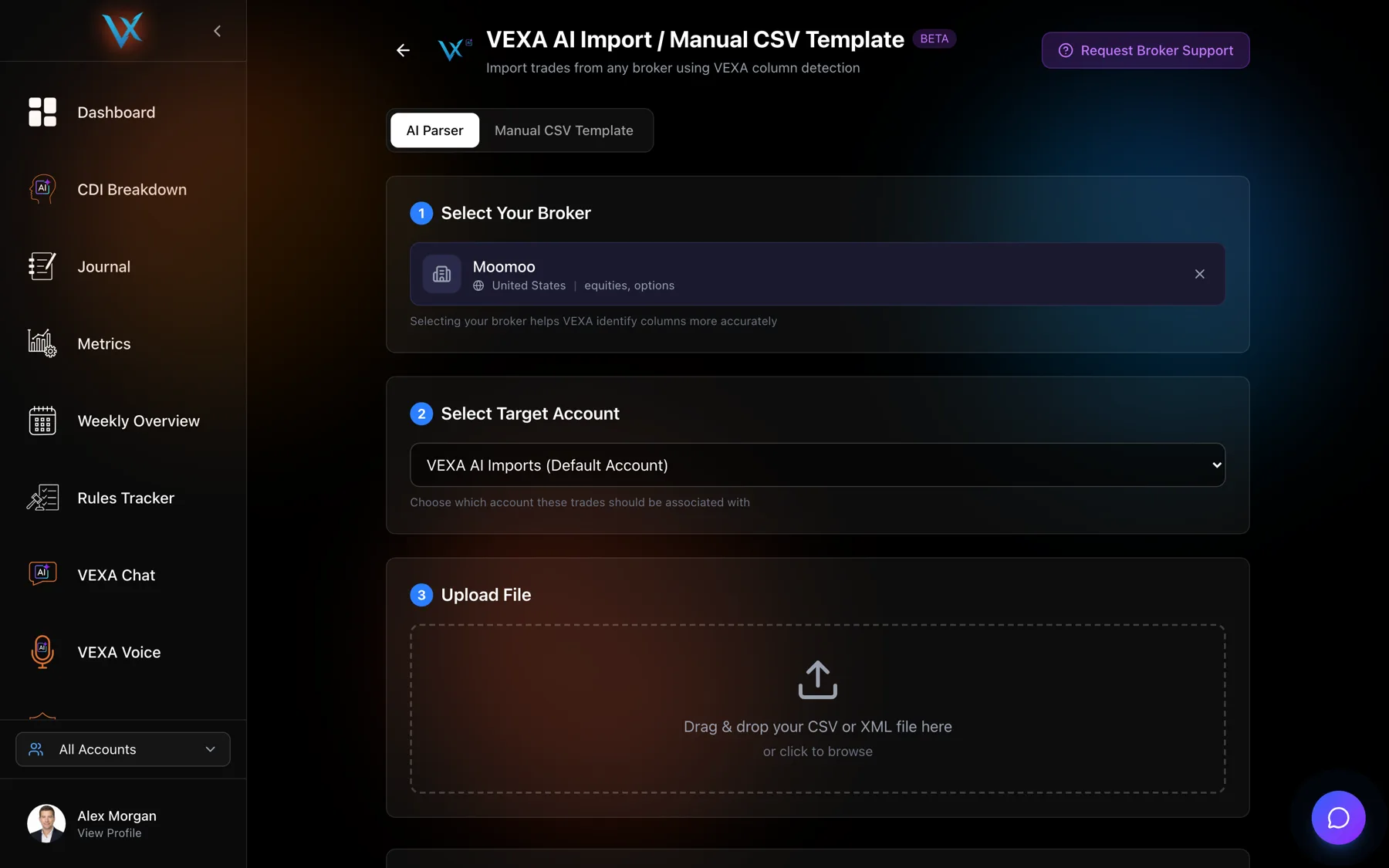
- Open Profile and find the VEXA AI Import / Manual CSV Template card, or open the broker picker and click the AI Parser card.
- Make sure the segmented control at the top is on the AI Parser side, not the manual template side.
- Under Select Your Broker, search for your broker. If it is not there, use the support request link so it can be added.
- Under Select Target Account, pick an existing account, the default VEXA AI Imports account, or create a new one.
- Drag your file into the upload area, or click to browse.
- Click Analyze with VEXA AI.
- In Timezone Settings, confirm what timezone the file is written in and choose the timezone you want your trades displayed in. The display one is required.
- Read the preview of the first ten rows and the four tiles above it.
- Click Confirm Import.
What the status chips mean
The page moves through a fixed sequence: uploaded, preprocessing, analysing, mapping ready, parsing, then either review required or ready to import, then importing, then completed. If it stops on one for a long time, the file is large rather than stuck. If it fails, the page says so plainly and offers the support request link.
Reading the preview
Four tiles sit above the preview table: Total, Parsed, Rejected, Symbols.
- Parsed well below Total means the mapping is only working for some of your rows. Look at the rejected rows’ reasons before importing.
- Symbols far higher than you expect usually means the symbol column was mapped to something else, like an order id.
- Rejected is a handful is normal. Statement exports carry summary and cash rows that are not fills.
The preview is the last point at which a bad mapping is cheap to catch, so read it rather than skipping to Confirm.
The two timezone questions
The first asks what timezone the file is in. VEXA suggests one and labels it as detected from the broker. If you override it, the page warns you, because that is the setting that decides which day every trade lands on.
The second asks what timezone you want your trades shown in. It is required and Confirm Import stays blocked until you answer it. Your fills are stored in true UTC regardless, so this choice only changes what you read, and you can change it later without touching your data.
Guards that stop a bad import
Contract sizes are where an AI-inferred mapping can do the most damage, so two rules are enforced regardless of what the mapping says:
- Options are given a contract size of 100 unless the file explicitly declares a larger one. A misread contract size on an option is the difference between a profitable month and a losing one.
- An unknown futures contract stops the import rather than guessing. You get a message naming the symbol. That is deliberate: importing futures at the wrong contract size produces confidently wrong profit figures.
What you should see
An import complete panel with three numbers: trades created, open positions updated, duplicates skipped. The account you imported into is then selected for you in the account filter.
If it doesn’t work
- “We couldn’t parse this file yet.” The layout is too far from anything VEXA can map. Use the support request link on that message and attach the file. See Ask VEXA to support your broker.
- Confirm Import will not click. You have not set a display timezone. The message sits directly above the button.
- The import worked but the profit figures are wrong. Check the contract size on futures and options rows in the preview before re-importing.
- You are on the manual template side by mistake. The message reads that your file does not match the VEXA manual CSV template. Switch the segmented control back to the AI Parser side, or see Fill in the VEXA CSV template.
Related
Still stuck? Email support@vexatrade.ai.