Cancel your subscription
Where you bought VEXA is where you cancel it. Three exact paths, and what keeps working afterwards.
On this page
What this does
Cancelling turns off auto-renewal. You keep full access until the end of the period you have already paid for. Nothing is deleted and nothing is refunded for the remainder of that period.
Your Welcome Package is not a subscription, so there is nothing to cancel while you are inside one. It ends on its own date and leaves you on Edge (Free). VEXA never collects a card for it.
Before you start
Where you bought it is where you cancel it. Deleting the VEXA app does not cancel anything. Neither does deleting your VEXA account, if you bought through the App Store or Google Play. See the warning at the end.
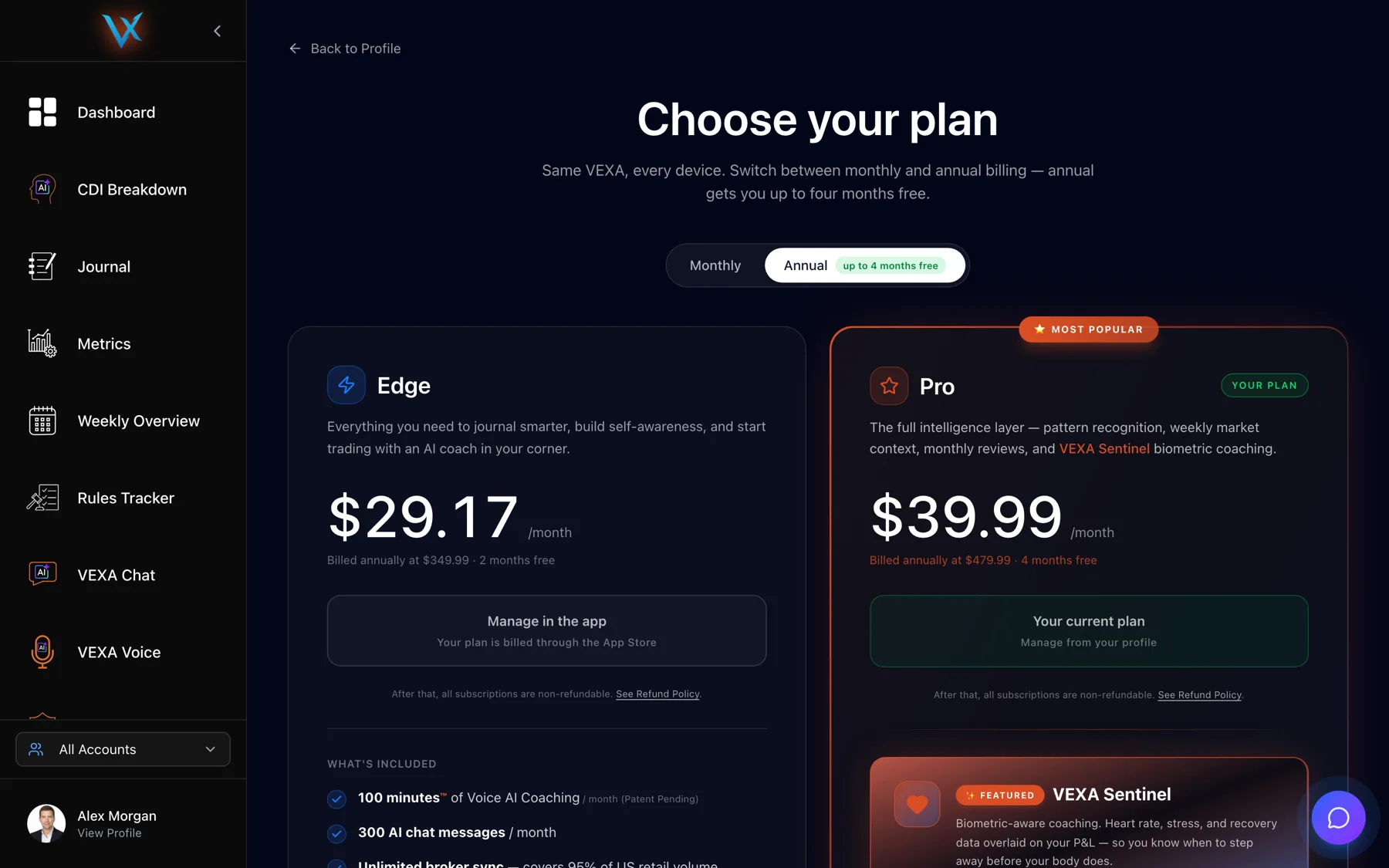
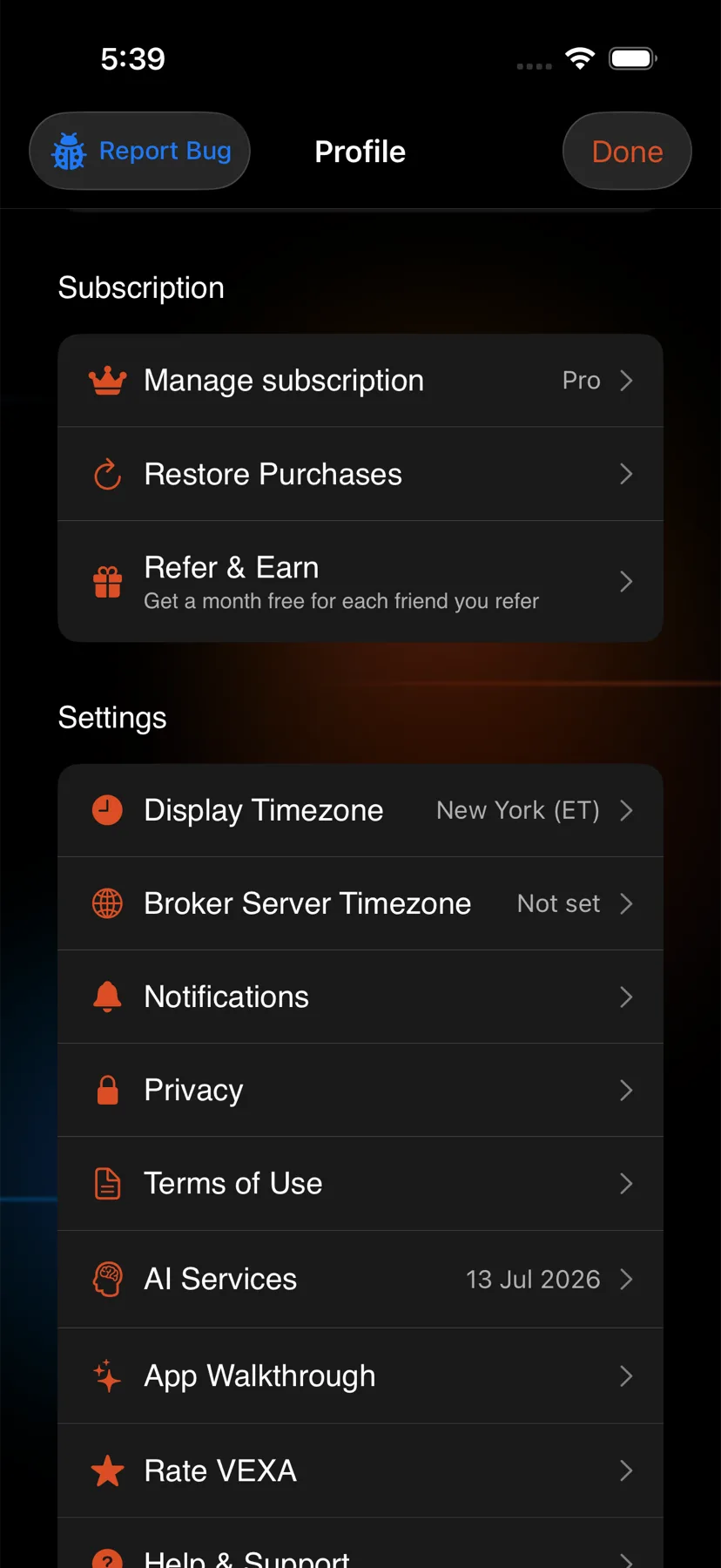
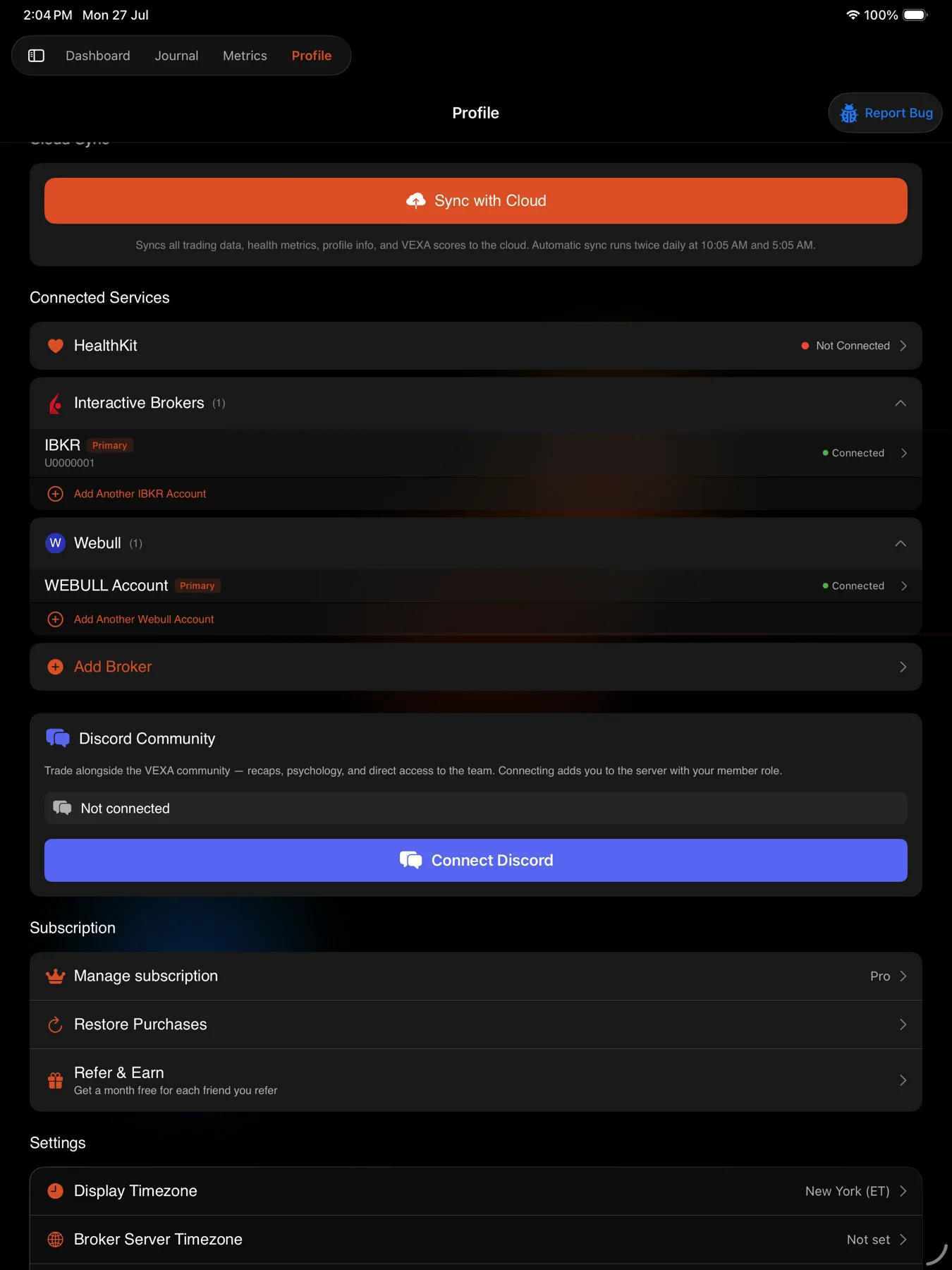
Check where you bought it: open Profile, then Subscription. On the web, a subscription bought on a phone shows “Manage in the app” and names the store.
Steps
- Open Profile from the sidebar card at the bottom, which reads your name with View Profile under it.
- Find the Subscription card and tap the plan row.
- On the Choose your plan page, press Manage billing.
- Stripe’s billing portal opens.
- Choose to cancel the subscription there and confirm.
- Open the Settings app on your iPhone. This is Apple’s Settings app, not VEXA.
- Tap your name at the top.
- Tap Subscriptions.
- Tap VEXA, then Cancel Subscription.
You can also start from inside VEXA: tap the circular avatar at the top right of Home, then Subscription, then Manage subscription, which opens the same Apple sheet.
- Open the Settings app on your iPad. This is Apple’s Settings app, not VEXA.
- Tap your name at the top.
- Tap Subscriptions.
- Tap VEXA, then Cancel Subscription.
You can also start from inside VEXA: tap the profile chip at the bottom of the sidebar, then Subscription, then Manage subscription.
- Tap the circular avatar at the top right of Home.
- Scroll to Subscription and tap Manage in Google Play.
- Google Play opens on the VEXA subscription.
- Tap Cancel subscription and confirm.
You can also get there directly in the Google Play app, under your profile picture, Payments & subscriptions, Subscriptions.
- Tap the profile chip at the bottom of the sidebar.
- Scroll to Subscription and tap Manage in Google Play.
- Google Play opens on the VEXA subscription.
- Tap Cancel subscription and confirm.
You can also get there directly in the Google Play app, under your profile picture, Payments & subscriptions, Subscriptions.
What you should see
Profile > Subscription shows an amber Cancelled badge with “Access until {date}”.
VEXA emails you once, with the subject “Your VEXA cancellation is confirmed”. It states the date your access runs to and confirms your data stays where it is.
What cancelling does and does not do
| Auto-renewal | Off |
| Access | Continues to the end of the paid period |
| Your trades, journal and scores | Untouched, and still readable once you are back on the free plan |
| Refund for the current period | None. See Refunds |
| Your Discord Trader role | Kept |
| Your Discord Pro role | Removed when access actually ends |
Come back later and everything is where you left it.
If it doesn’t work
- There is no Manage billing button on the web. You bought on a phone. Use the iPhone, iPad or Android steps.
- “This subscription is managed outside Stripe (App Store / Play Store).” Same reason. Cancel in the store you bought through.
- You cancelled and are still being charged. Check you cancelled in the right store, on the same account you subscribed with. If you are certain, email support@vexatrade.ai with the receipt.
- You want to keep VEXA but stop paying. Cancelling is the way to do it. You drop to Edge (Free) at the end of the period and keep your brokers, trades, metrics and journal. See Manage your plan.
Related
Still stuck? Email support@vexatrade.ai.