Read the execution timeline
Every fill behind a trade, what the six fill types mean, where the fees come from, and how to add a fill your broker did not export.
On this page
What this does
A trade in VEXA is built from executions, which are the individual fills your broker reported. The execution timeline lists them in order with the price, the size and the fee on each one. It is where you go when a trade’s average price or its P&L does not look like what you remember.
Before you start
The fills come from your broker, through the API sync or the file you uploaded. VEXA does not invent them. A trade with a single entry and a single exit and nothing in between usually means the source file only carried that much.
Every time on this list is shown in your Trade Display Timezone, the same as the rest of the app.
The six fill types
| Type | What it means |
|---|---|
| Entry | The fill that opened the position. |
| Scale In | A fill that added to a position already open. |
| Partial Exit | A fill that closed part of the position. |
| Final Exit | The fill that closed the last of it. |
| Stop Loss | An exit that hit your stop. |
| Take Profit | An exit that hit your target. |
Steps
- Open the trade from Trades or from a Journal day card.
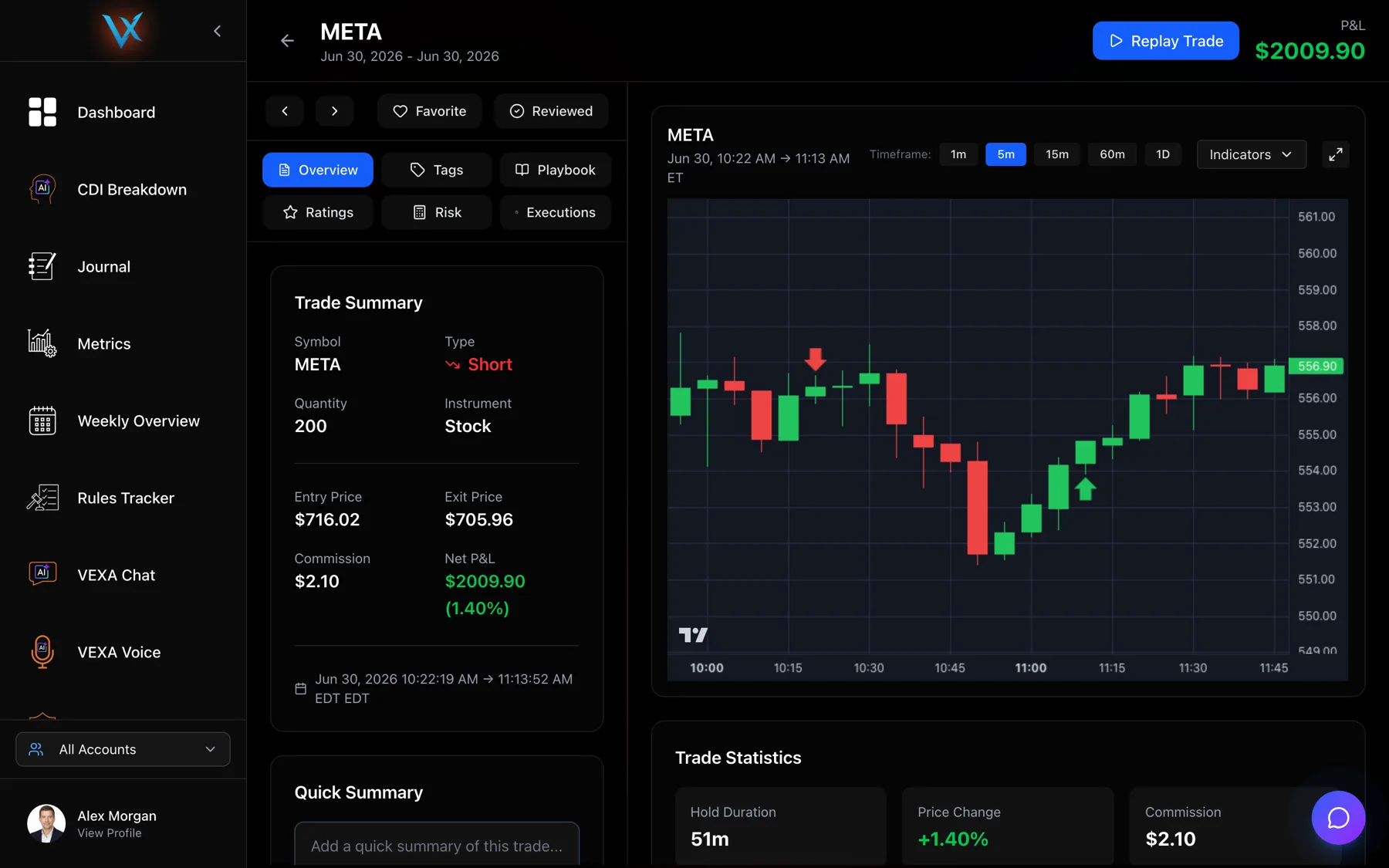
- The Execution Timeline is in the right panel, under the chart and the trade statistics.
- Each row shows the type, the time, the price, the quantity and
Fee: $x.xx. - To add a fill by hand, use the Executions tab in the left panel and its Add Execution form.
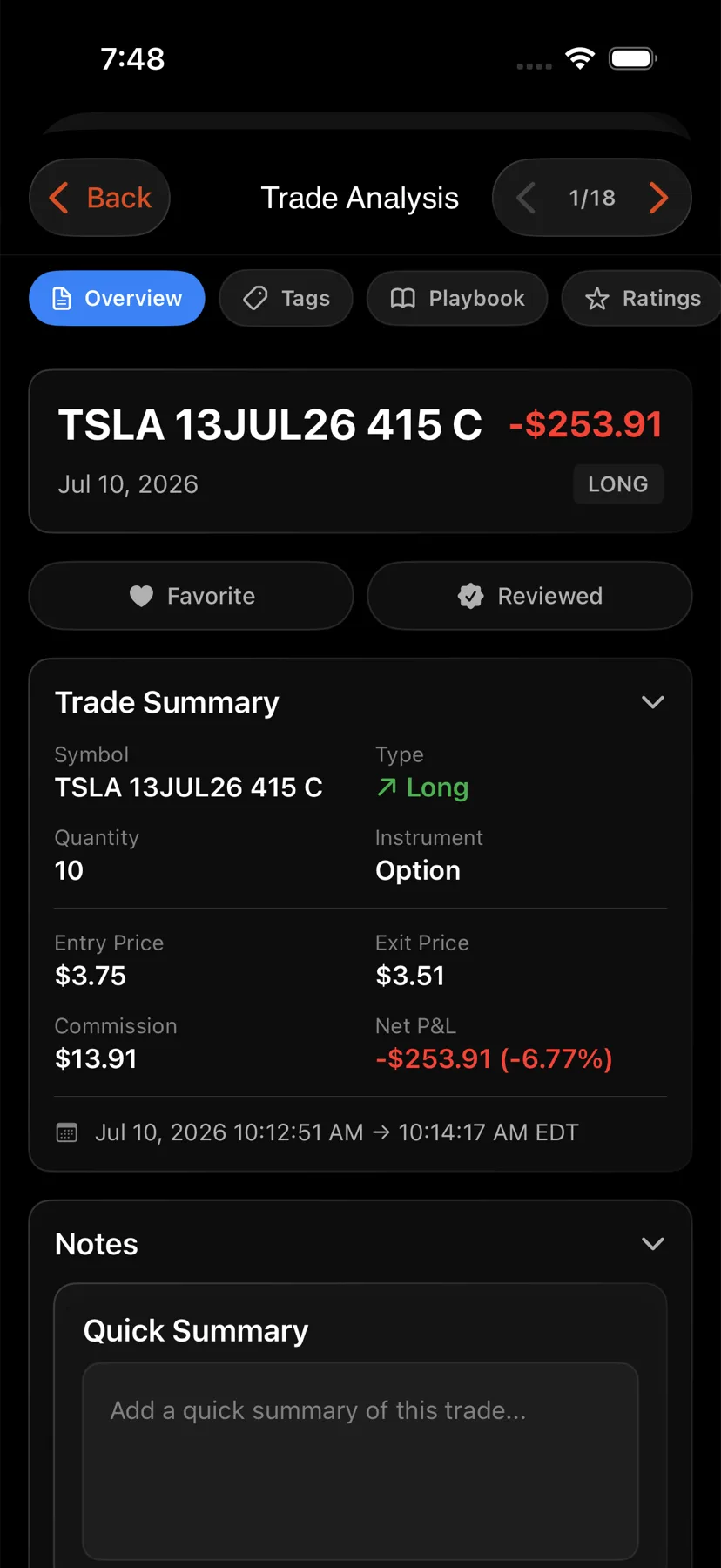
- Open the trade from Metrics or from a Journal day.
- Open the Executions section.
- Each fill shows its type badge, price, quantity, time and the order id your broker gave it.
- Tap Add to record a fill by hand: Price, Quantity, Commission, Type and Time.
- Open the trade from Trades in the sidebar.
- Open the Executions section.
- Each fill shows its type badge, price, quantity, time and broker order id.
- Tap Add to record a fill by hand.
- Open the trade from Metrics or from a Journal day.
- Tap the Executions tab.
- Executions Timeline shows one card per fill with the type, price, quantity, timestamp and a shortened order id.
- Tap Add to open Add Execution: Execution Type, Price, Quantity and Commission.
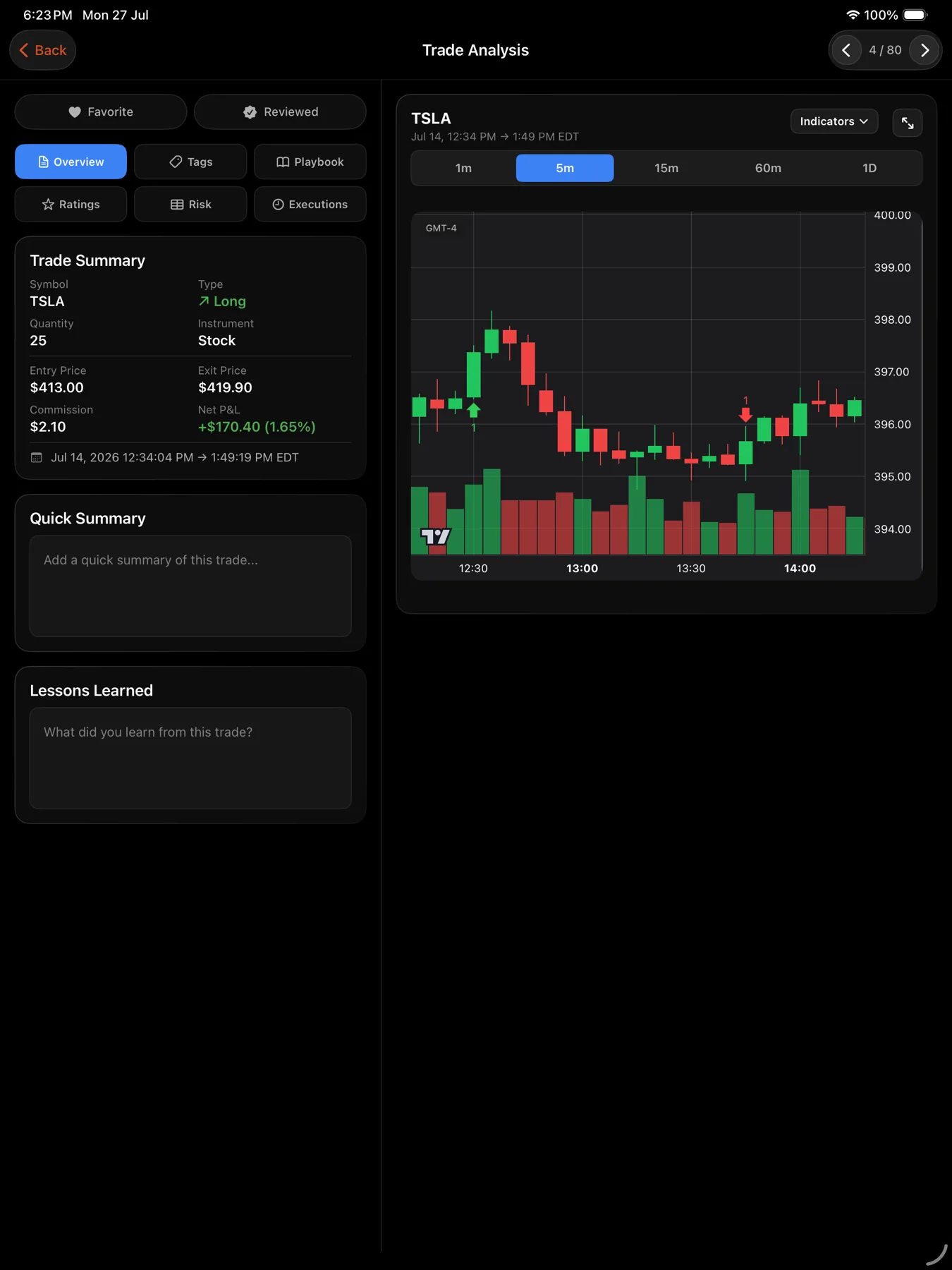
- Open the trade from Trades in the sidebar.
- Tap the Executions tab.
- Each fill is one card, with the same fields as the phone.
- Tap Add to record a fill by hand.
Fees are per fill, not per trade
Each execution carries its own fee, and the trade’s Commission figure is the sum of them. This is why a scalp with eight partial exits can have a commission line that looks out of proportion to its size.
The trade’s P&L is already net of every one of these fees. There is nothing further to subtract.
Adding a fill by hand
The Add Execution form exists for the gaps: a broker that exported the exit but not the scale-in, a manual fill you took on the phone, a leg the file format could not represent.
On the web app the form also has a Display on chart checkbox, which decides whether the fill gets a marker on the price chart.
Adding a fill changes what VEXA computes for the trade, so add real fills only. If you are not sure of the price or the time, leaving the trade short a fill is the safer error.
Order ids
The mobile apps print the broker’s order id under each fill, shortened to fit. It is the reference to quote when you are reconciling against a broker statement and want to prove which fill is which.
Legacy trades
Very old imports predate execution-level storage. Those trades still have their prices and their P&L, but there is nothing to list, and the interface says so plainly rather than showing an empty box.
What you should see
The fills in time order, oldest first, with the entry at the top and the closing fill at the bottom. The quantities on the exit side add up to the quantities on the entry side for a closed trade.
If it doesn’t work
Two fills that look identical. Check the times. Hedged or automated strategies genuinely produce two fills in the same second at the same price.
Fills you know happened are missing. The source file did not carry them. Re-import from a report that includes every execution, or add them by hand.
The times are wrong by a whole number of hours. That is a timezone setting, not the fills. Check your Trade Display Timezone, and for MetaTrader-style statements your Broker Server Timezone.
Related
Still stuck? Email support@vexatrade.ai.