Assign trades to a playbook
Put a trade in a playbook from the trade page, tick which of its criteria you actually met, and understand the automatic Favorites playbook.
On this page
What this does
Assigning a trade to a playbook is what turns a written setup into a measured one. It is done from the trade, not from the playbook, and it is available on every device including the phones.
While you are there you tick which of the playbook’s criteria this trade actually met, which is the part that makes the data worth having.
Before you start
Assigning works on all five surfaces. Creating a playbook does not. iPhone and Android phone can only assign a playbook that already exists, so make your playbooks on the web app or a tablet first. See Create a playbook.
A trade can be in more than one playbook. There is no single-playbook rule.
Assigning a playbook makes a trade count as reviewed in the Review Status filter on the Trades page, which reads any tag or any playbook as review.
Steps
- Open the trade from Trades or from a Journal day card.
- Click the Playbook tab in the left panel.
- Pick the playbook you want to assign.
- Tick the Entry Criteria, Exit Criteria and Market Conditions this trade actually met. Leave the ones you missed unticked. That is the useful part.
- Open the trade from Metrics or from a Journal day.
- Open the Playbook section.
- Pick a playbook from the ones you have.
- Tick the entry, exit and market criteria this trade met.
- Open the trade from Trades in the sidebar.
- Open the Playbook section.
- Pick a playbook and tick the criteria this trade met.
- Open the trade from Metrics or from a Journal day.
- Tap the Playbook tab.
- Choose a playbook from the Assign Playbooks dropdown, which shows each one with its emoji, and tap Add.
- The playbook appears under Assigned Playbooks, each with its own remove control.
- The Trade Criteria card underneath lists that playbook’s entry, exit and market criteria. Tick the ones this trade met.
- Open the trade from Trades in the sidebar.
- Tap the Playbook tab.
- Choose a playbook from the dropdown and add it.
- Tick the criteria this trade met on the Trade Criteria card.
Tick the criteria honestly
The criteria checkboxes are the difference between “this setup makes money” and “this setup makes money when I actually wait for the trigger”. Ticking everything on every trade throws that away.
If a trade broke three of the four rules and still won, tick the one it met. That is the trade the data most needs.
The Favorites playbook
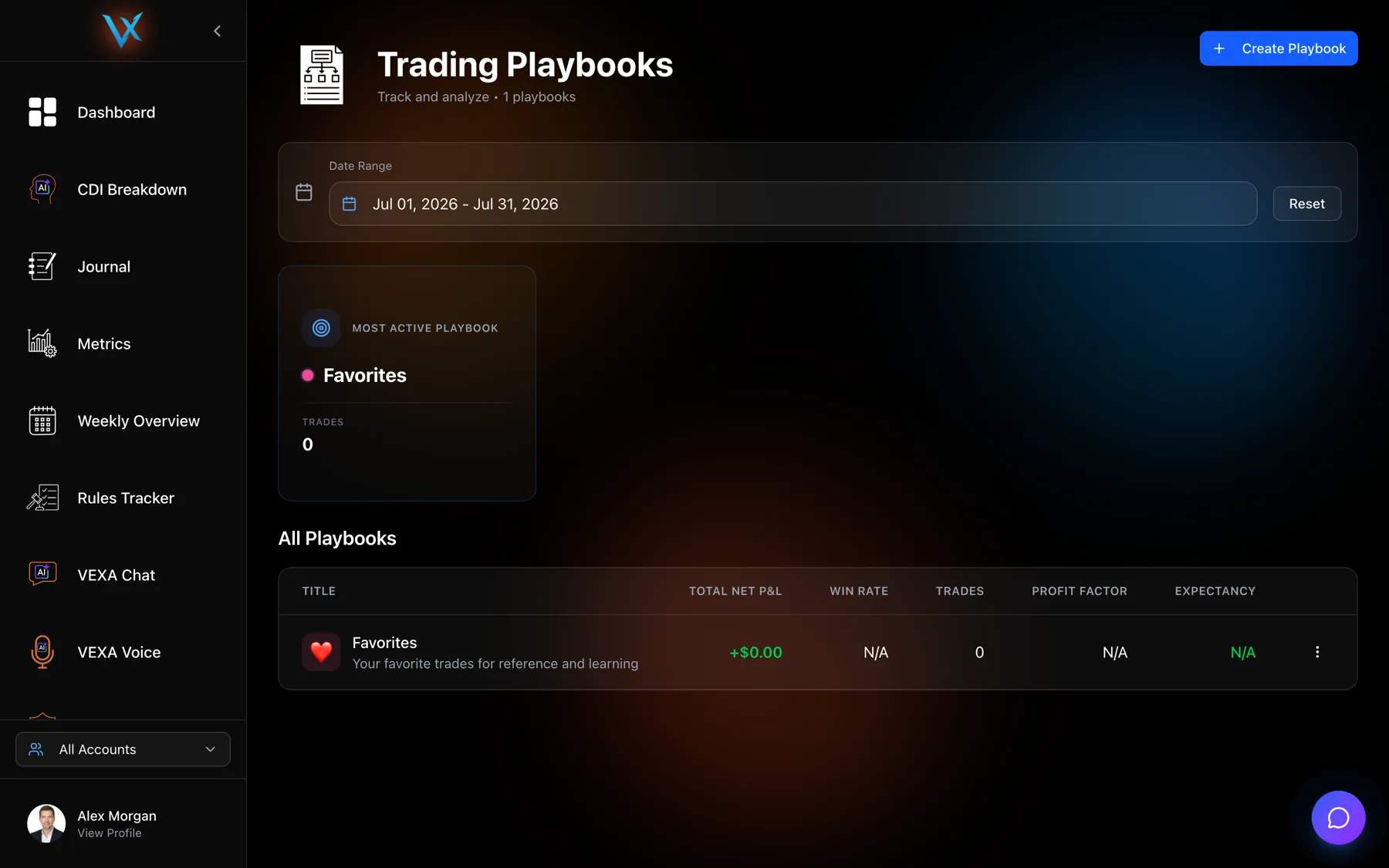
Every account has a playbook called Favorites, created automatically. It is what the heart button on a trade writes to.
It has no criteria on purpose, and the Playbook tab tells you so:
This trade is marked as a favorite. Favorites don’t have specific criteria.
Use the heart for trades worth coming back to, and real playbooks for setups worth measuring. See Mark a trade Favorite or Reviewed.
What you should see
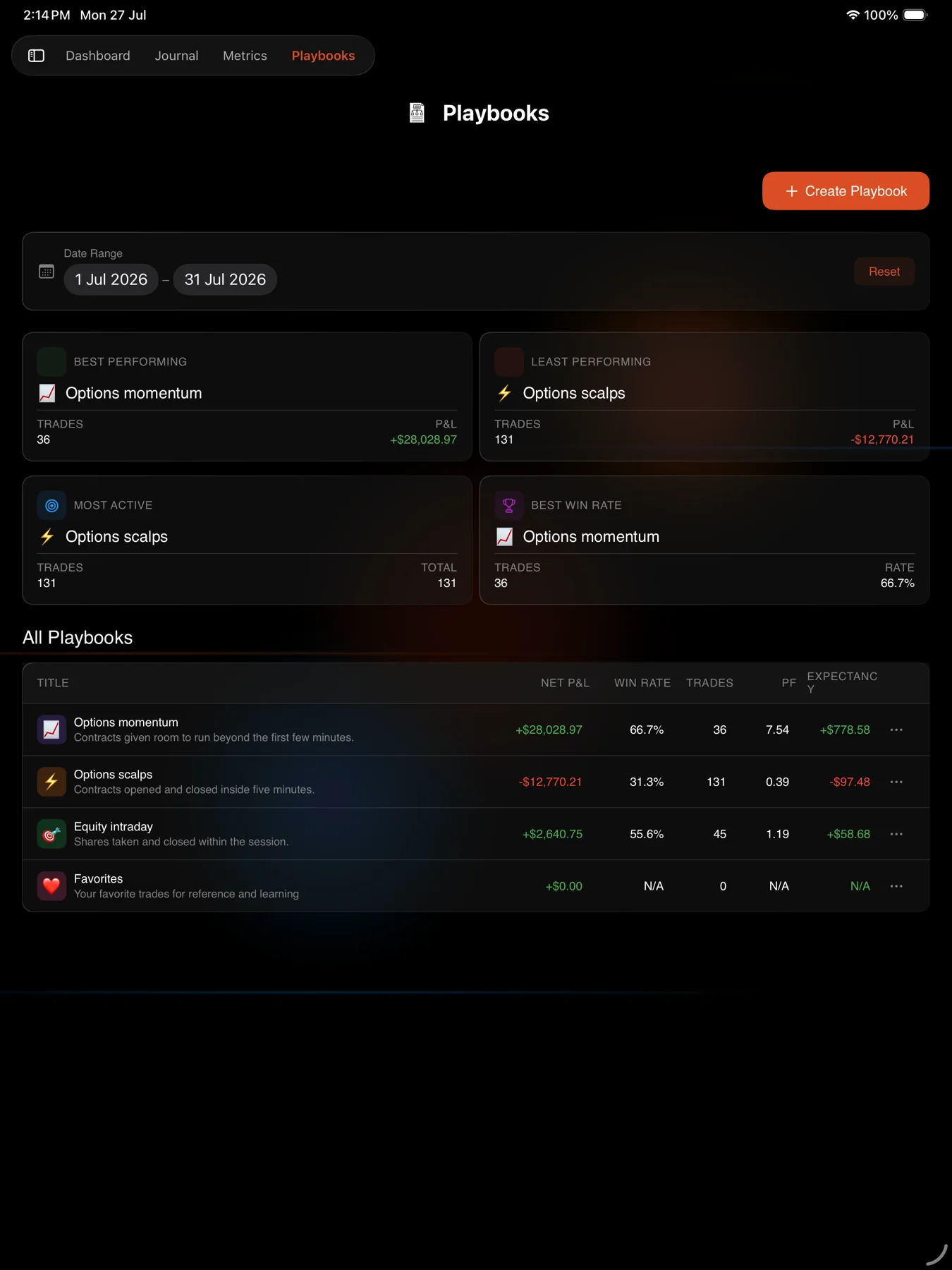
The playbook appears against the trade, and the criteria list opens under it. On the Playbooks page the playbook’s trade count goes up by one and its stats recalculate.
If it doesn’t work
The dropdown is empty. You have no playbooks yet other than Favorites. Create one on the web app or a tablet.
You cannot find a Create button on your phone. There is not one. Phones assign only.
The playbook stats did not move. The Playbooks page has its own date filter that opens on the current month. If the trade is older than that, widen the range.
Related
Still stuck? Email support@vexatrade.ai.