Filter your trades
All eight filters on the Trades page, what Review Status actually means, and why the date range follows you to other pages.
On this page
What this does
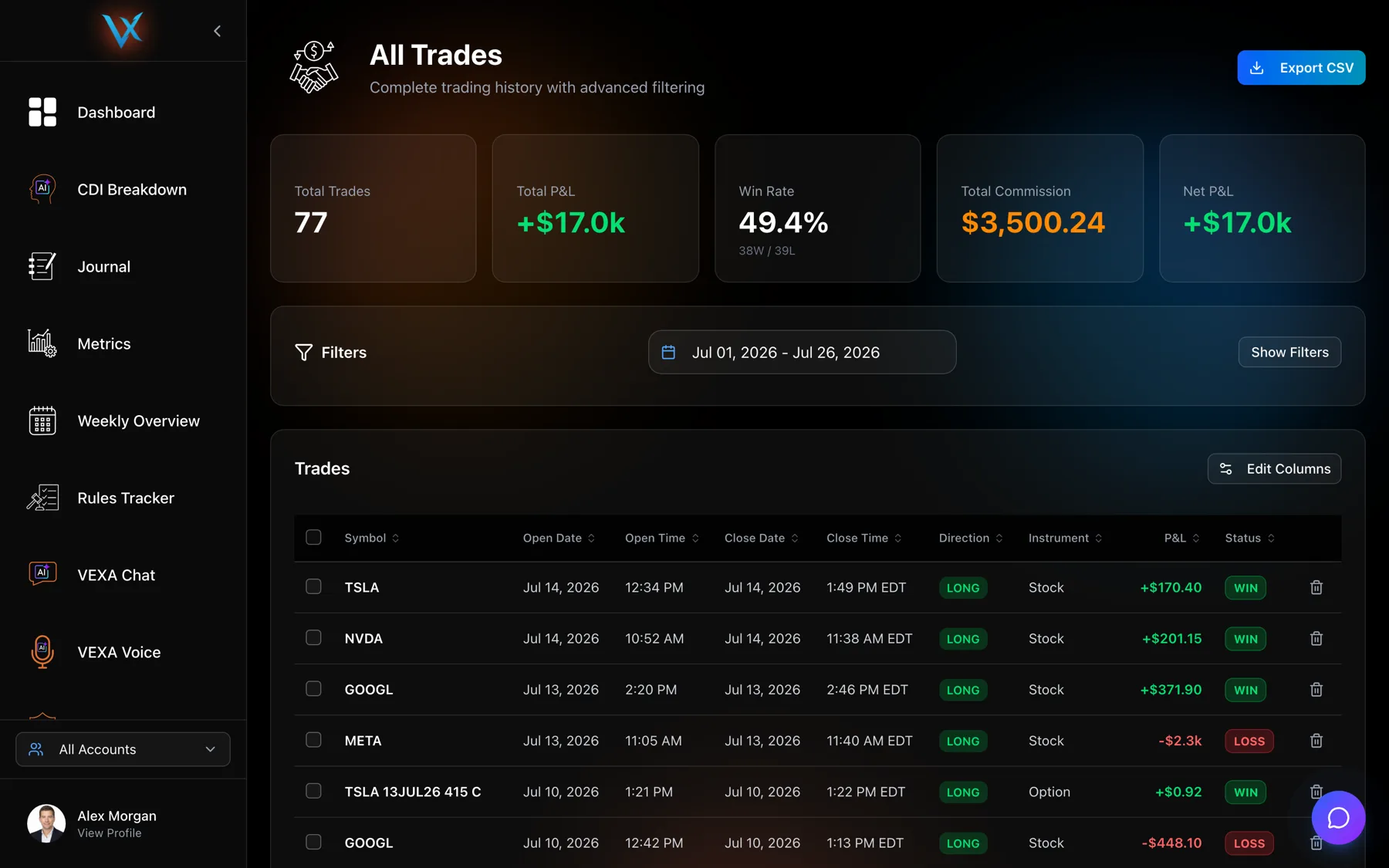
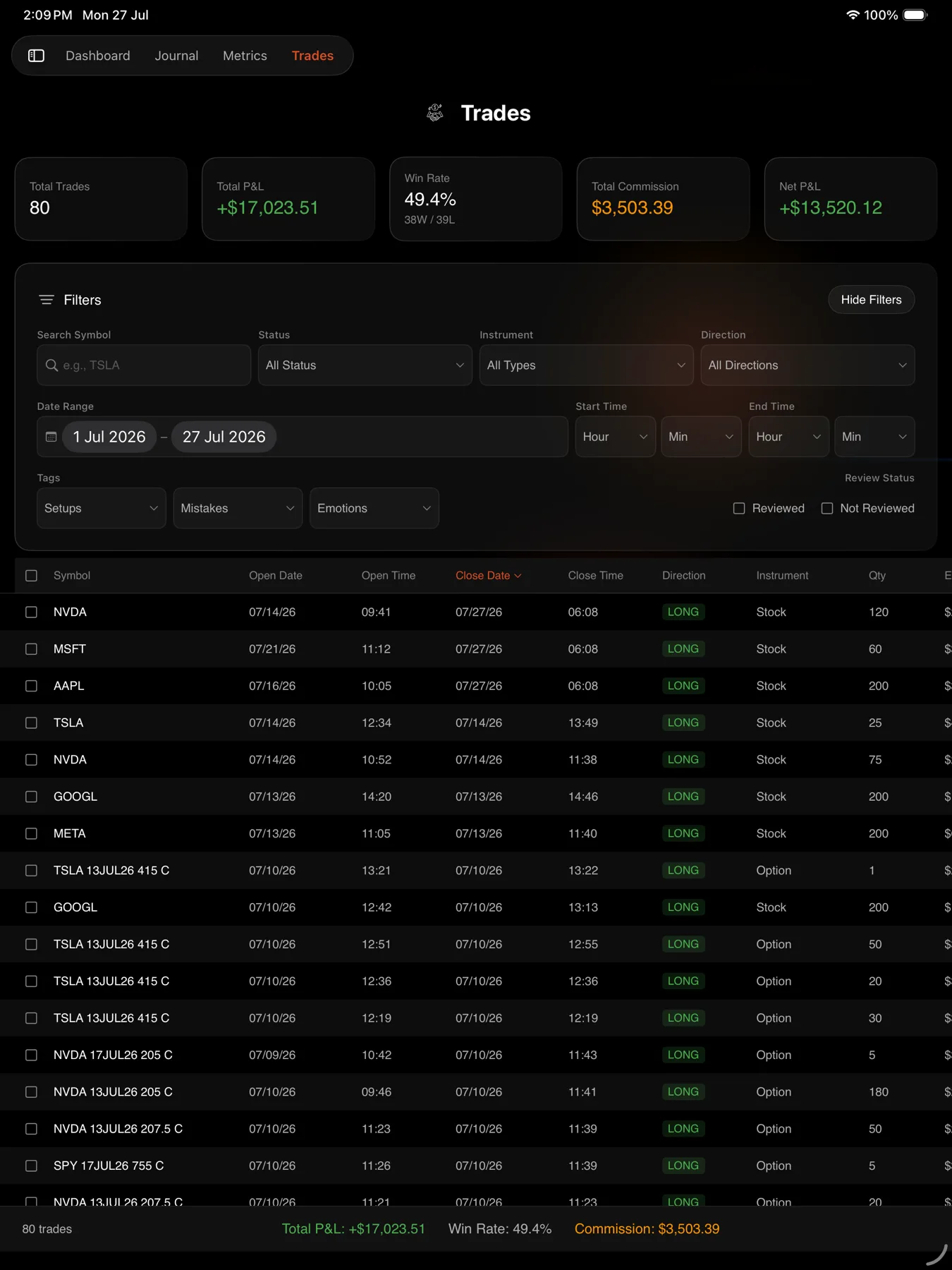
The filters narrow the Trades table to the trades you want to look at. Everything downstream follows the filtered set: the five summary tiles recalculate, the CSV export contains exactly what you filtered, and the arrows on Trade Analysis walk only these trades.
Before you start
The date range is shared across pages and it is sticky. Set it to Last Quarter here and Metrics, the Journal and Playbooks all open on Last Quarter too, including after you close the browser. This is the most common reason two pages appear to disagree about your numbers.
The account filter drops legacy trades. Trades imported before VEXA tracked which broker account they belonged to have no account attached, so selecting any account excludes them. If old trades vanish the moment you pick an account, clear the account filter.
The filters are on web, iPad and Android tablet. iPhone and Android phone have no Trades screen to filter.
The eight filters
| Filter | What it does |
|---|---|
| Search Symbol | Matches any part of the symbol. Typing TSLA finds TSLA options as well as TSLA stock. |
| Status | All Status, Open, Closed, Win, Loss or Break Even. |
| Instrument | All Types, Stock, Option, Future, Crypto or Forex. |
| Direction | All Directions, Long or Short. |
| Date Range | Eight presets plus a custom two-click range. |
| Start Time and End Time | Entry time of day, set as an hour and a minute. |
| Tags | Setups, Mistakes and Emotions. |
| Review Status | Reviewed, Not Reviewed, or both. |
Date presets: This Week, Last Week, This Month, Last Month, This Quarter, Last Quarter, YTD and All Time. New accounts open on This Month. All Time starts at your earliest trade.
Steps
- Open Trades in the sidebar.
- Click Show Filters to open the panel. The date range picker stays visible even when the panel is closed.
- Set the filters you want. The table updates as you go and returns to page one.
- Click Clear All to drop every filter at once. That button only appears once a filter is active.
- Tap Trades in the sidebar.
- Tap Show Filters.
- Set the filters you want. The iPad panel adds an Open Date / Close Date switch that decides which of the two dates the date range is measured against, and uses wheel pickers for Start Time and End Time.
- Tap the Clear Filters chip to drop everything.
- Tap Trades in the sidebar.
- Tap Filters.
- Row one holds Search Symbol, Status, Instrument and Direction. Row two holds the date range preset and the Start Time and End Time pickers. Row three holds the three tag dropdowns and the Review Status chips.
- Tap Clear All in the third row to drop everything.
Time filters are half open
Start Time is included, End Time is not. A filter of 09:30 to 09:35 returns trades entered from
09:30:00 up to 09:34:59. This matters when you drill into a time-of-day bar from Metrics, because
the bar labelled 09:30-09:35 covers the same half-open window.
Review Status is not the Reviewed button
The Review Status filter counts a trade as reviewed when it has at least one tag or at least one playbook assigned. It does not read the Reviewed toggle on the Trade Analysis page. The two controls share a word and nothing else. See Mark a trade Favorite or Reviewed.
How tag filtering combines
Selecting tags is an OR, both inside a category and across categories. A trade matches if it carries any one of the tags you picked. While any tag filter is active, trades with no tags at all are excluded rather than treated as neutral.
What you should see
The five summary tiles recalculate to the filtered set, the row count under the table changes, and
Clear All appears. On web the card title changes to Trades (N selected) once you tick rows.
If it doesn’t work
Everything disappears when you pick an account. Legacy trades with no broker account attached are excluded by any account selection. Clear the account filter to see them.
Nothing matches even with filters cleared. Check the date range. All Time is the fastest way to prove a trade exists at all.
Numbers still look wrong after a fresh import. Trades are cached for five minutes. Use the refresh icon next to the date range.
Related
Still stuck? Email support@vexatrade.ai.