Session states and bio stress
What Calm, Elevated, Stressed and Tilt mean, the deviation figures behind them, and why your rules still fire when the badge says Calm.
On this page
What this does
Sentinel turns your heart rate into two readable labels. Both come from physiology alone. Neither knows anything about the trades you are taking.
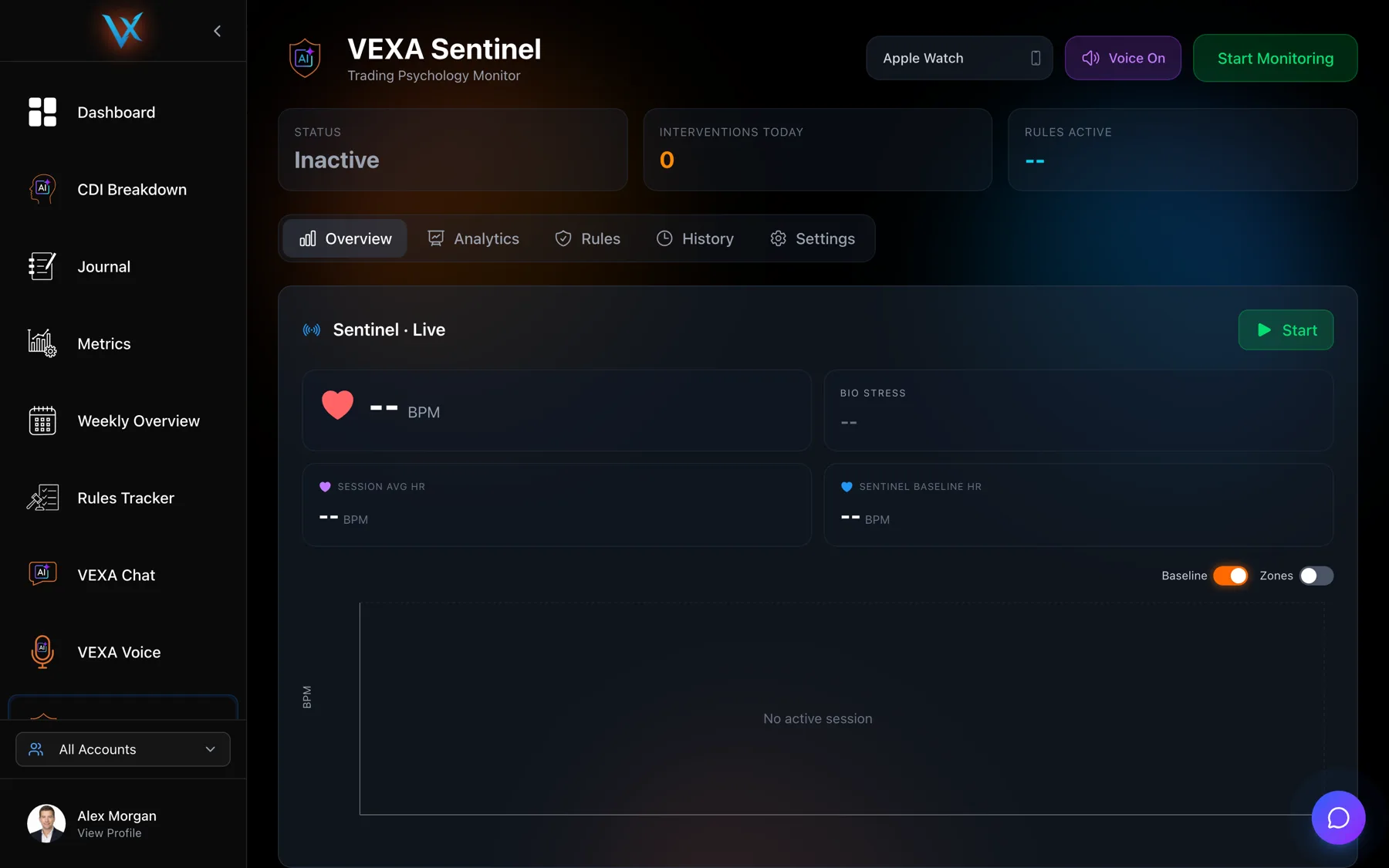
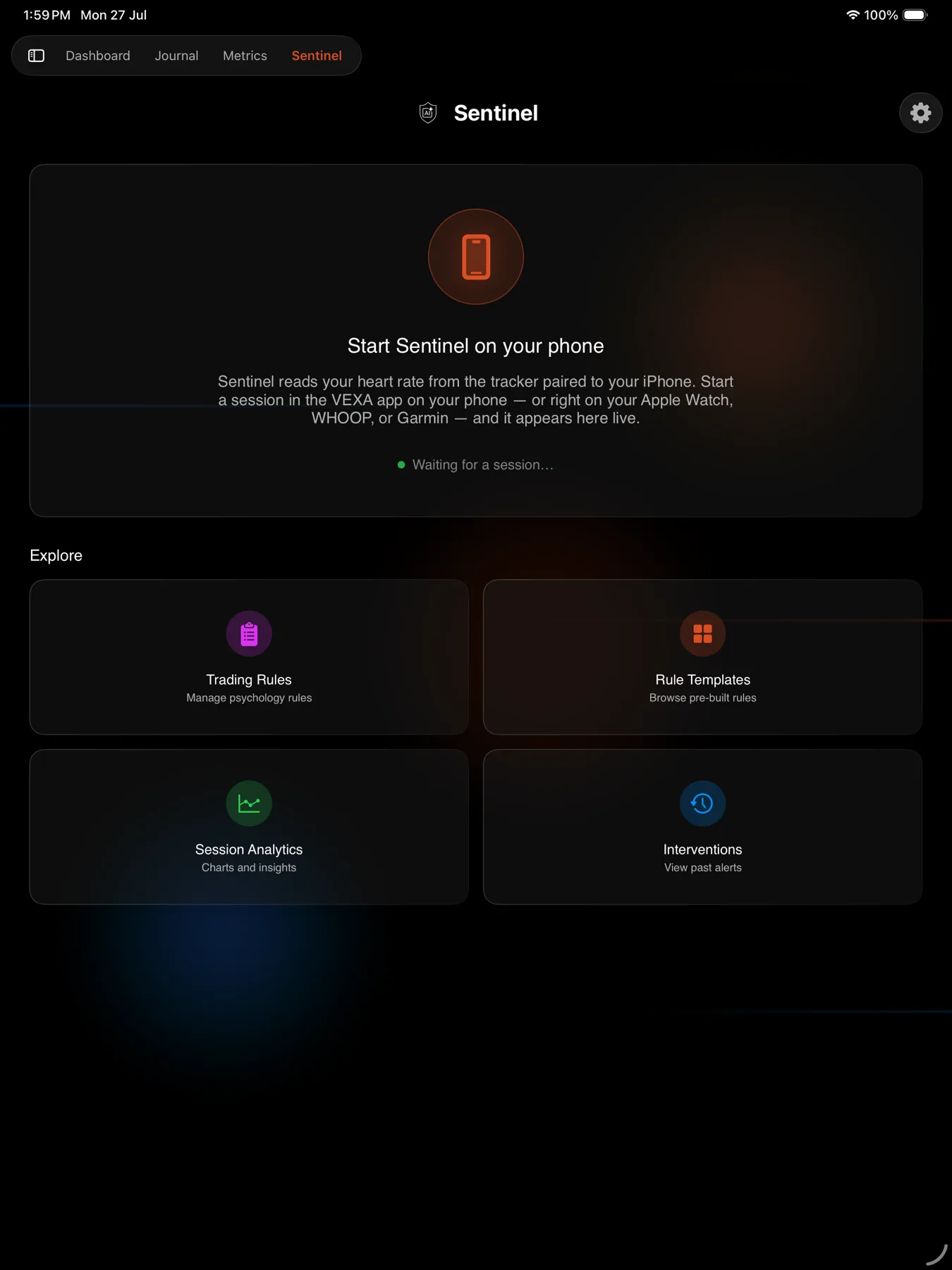
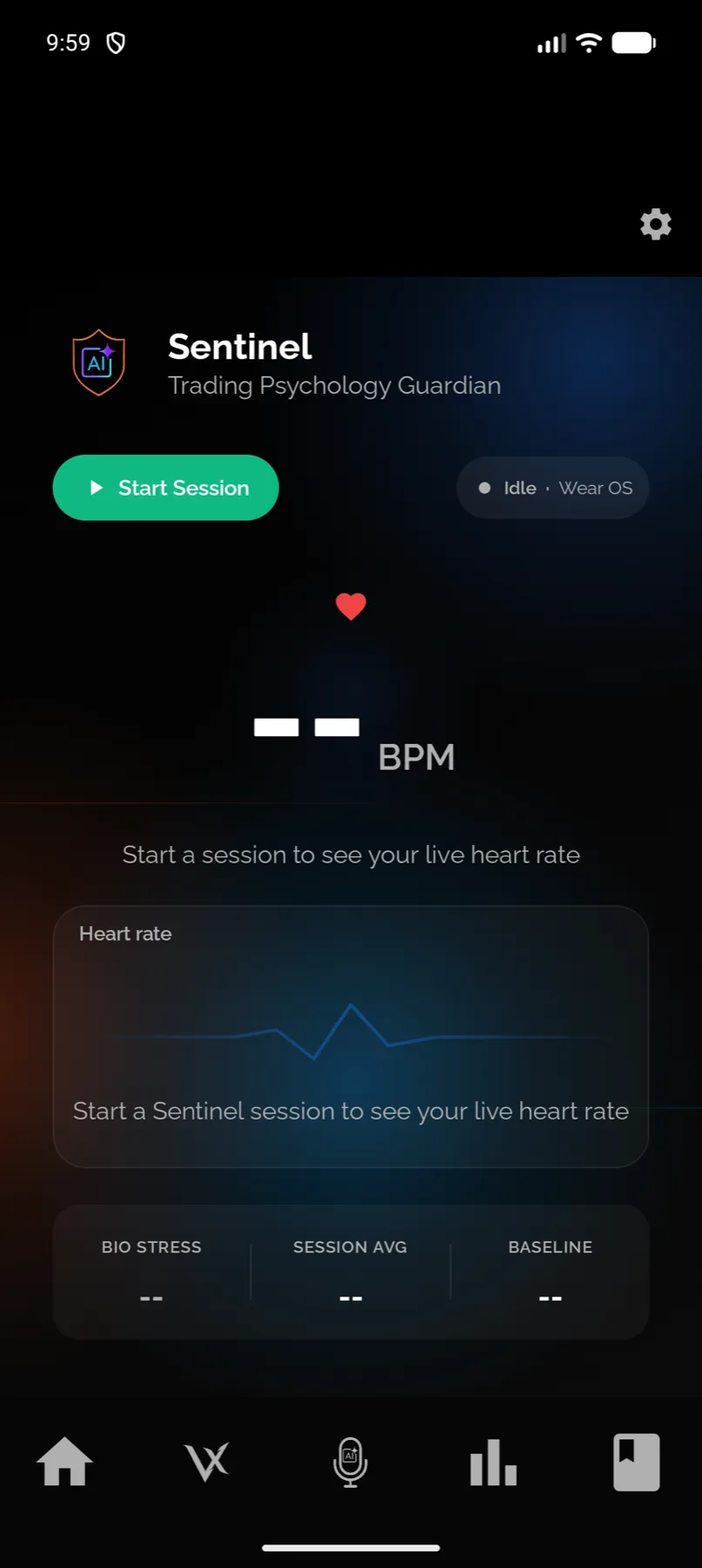
Session state is the badge on the live card: Calm, Elevated, Stressed or Tilt. It is driven by how far your heart rate has drifted from your own resting baseline during this session.
heart rate deviation = (current heart rate - session resting baseline) / session resting baseline| What happens | Result |
|---|---|
| Deviation goes above 20% while the state is Calm | Elevated |
| Deviation goes above 40% | Stressed |
| Tilt | Only reachable through a rule or a detected pattern, never from heart rate alone |
Bio Stress is the separate Low, Medium or High reading on the same card, from the same deviation:
| Deviation | Bio Stress |
|---|---|
| 15% or under | Low, shown green |
| Between 15% and 30% | Medium, shown yellow |
| Over 30% | High, shown red |
The two disagree at times, and that is expected. They use the same input on different scales.
The deviation percentage printed under your heart rate on the same card is a third readout with its own thresholds again, graded green under 10%, yellow from 10% to 20% and red over 20%. It also ignores the direction of the gap, where Bio Stress does not, so a heart rate well below baseline shows red text next to a Low reading. Neither number overrides the other.
Before you start
The state badge is a display, and your rules do not depend on it. This is the part that confuses people. The 20% gate governs when the badge changes colour. Your own rules are evaluated on every biometric reading that gets through the 30-second debounce, whatever the badge says. A rule you wrote to fire at 12% above baseline fires at 12% above baseline while the badge still reads Calm.
Tilt is not a heart rate. No pulse figure on its own puts you in Tilt. Something has to escalate you there: a rule with an Escalate State action, or a pattern Sentinel recognised.
Coming back down works slightly differently on iPhone and Android. On iPhone the state drops one level after five continuous minutes of calm conditions, and it can only climb one level at a time. On Android the drop is not held back in the same way, so a state can return to Calm sooner. Both use the same thresholds going up.
The baseline underneath all of this improves with use. Until it is calibrated, deviation is measured against a safe default rather than your own resting figure. See The baseline and its 20 sessions.
What you should see
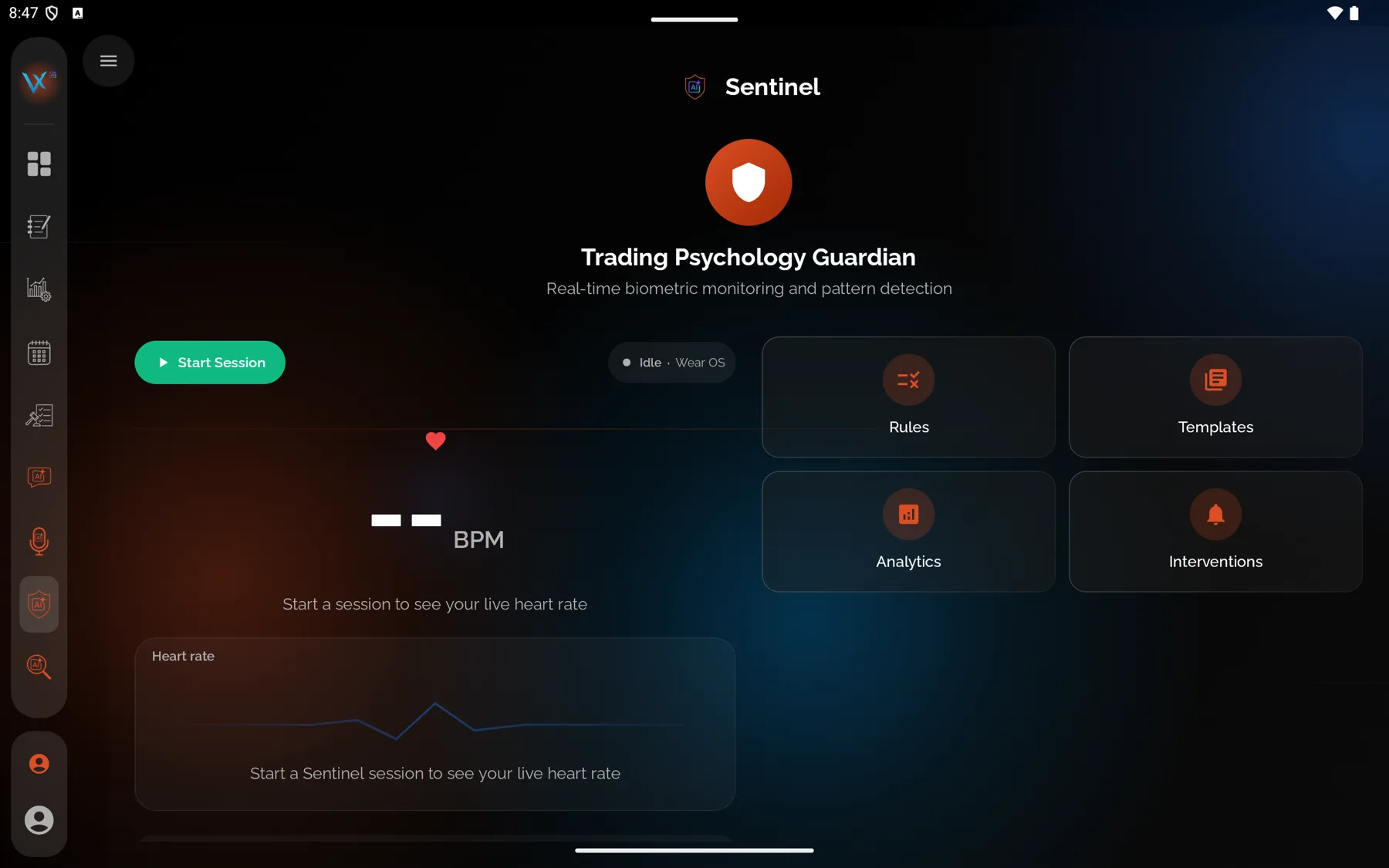
On the live card, a state badge next to the session timer and a Bio Stress reading in the vitals grid. Walking to the kitchen and back will move both, because both are measuring your body rather than your trading.
A state change on its own sends no alert. Alerts come from rules, and two rule templates exist that watch the state itself, one for Stressed and one for Tilt.
If it doesn’t work
The badge says Calm and you feel anything but. The badge is comparing you to your own baseline, and if your baseline is still calibrating it is comparing you to a default. Write a rule at the figure that matters to you rather than waiting for the badge.
The state jumped to Tilt with no warning. A rule with an Escalate State action fired. Check your rules list for one with that action.
Bio Stress reads High while the state says Elevated. Correct behaviour. High Bio Stress starts at 30% deviation and the Stressed state starts at 40%.
Related
Still stuck? Email support@vexatrade.ai.