Sentinel on iPad and Android tablet
Tablets show a session your phone is running. They cannot supply heart rate, and a session belongs on the phone.
On this page
What this does
Puts the live Sentinel view on a bigger screen. Sentinel reads physiology from a device on your body, and that device talks to your phone, so the tablet’s job is display rather than capture.
On a trading desk this is the useful arrangement anyway: the phone sits on the desk holding the strap connection, and the tablet shows you the heart rate, the chart and the alerts while you work.
Before you start
A Sentinel session belongs on your phone.
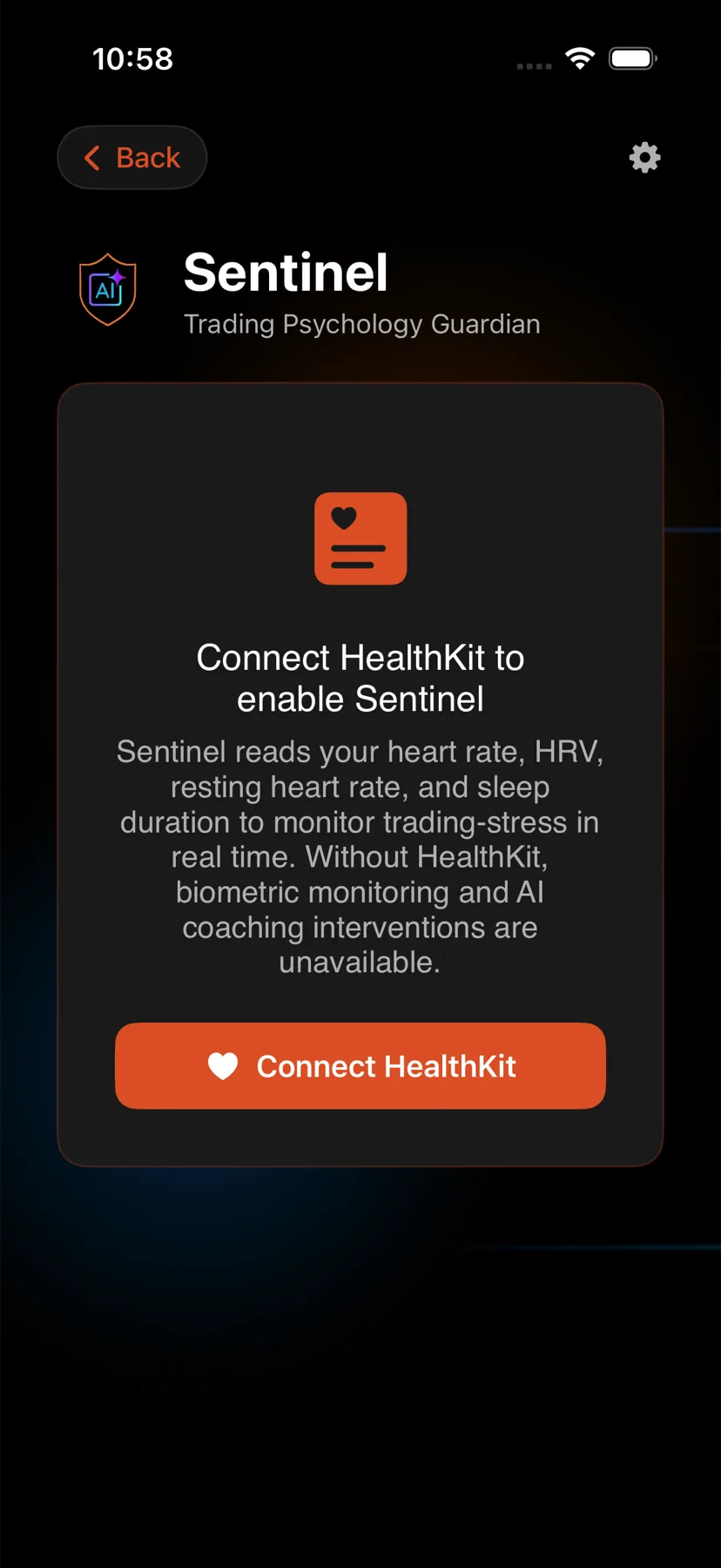
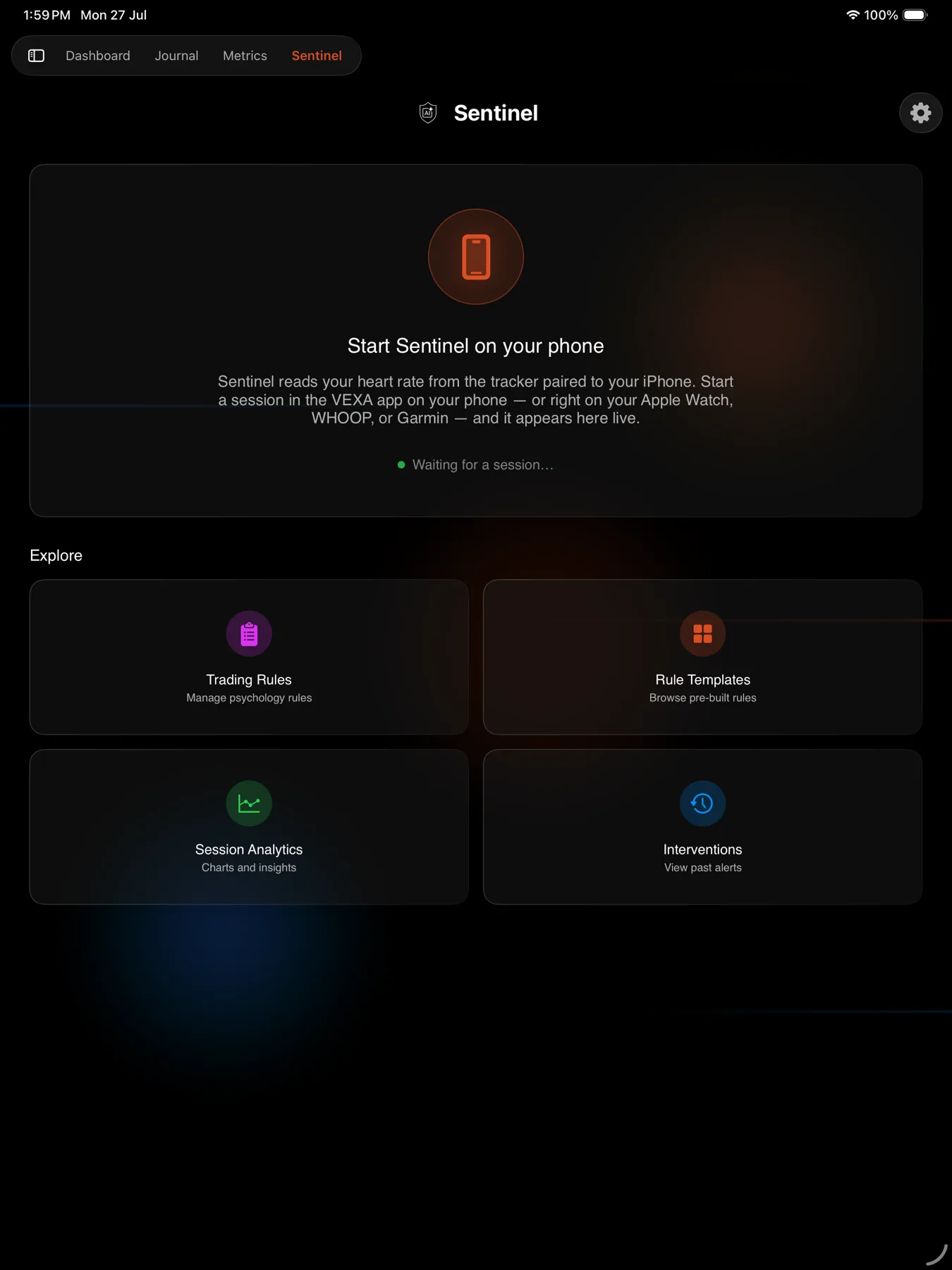
On iPad there is no way to start one. The screen shows “Waiting for a session…” and “Start Sentinel on your phone” until a session is running elsewhere. iPad does ask for Apple Health, and the iPad Profile carries a HealthKit row under Connected Services, because iPhone and iPad run the same app. Granting it there does not move where a session belongs, because an iPad has no pulse sensor of its own. See Connect Apple Health.
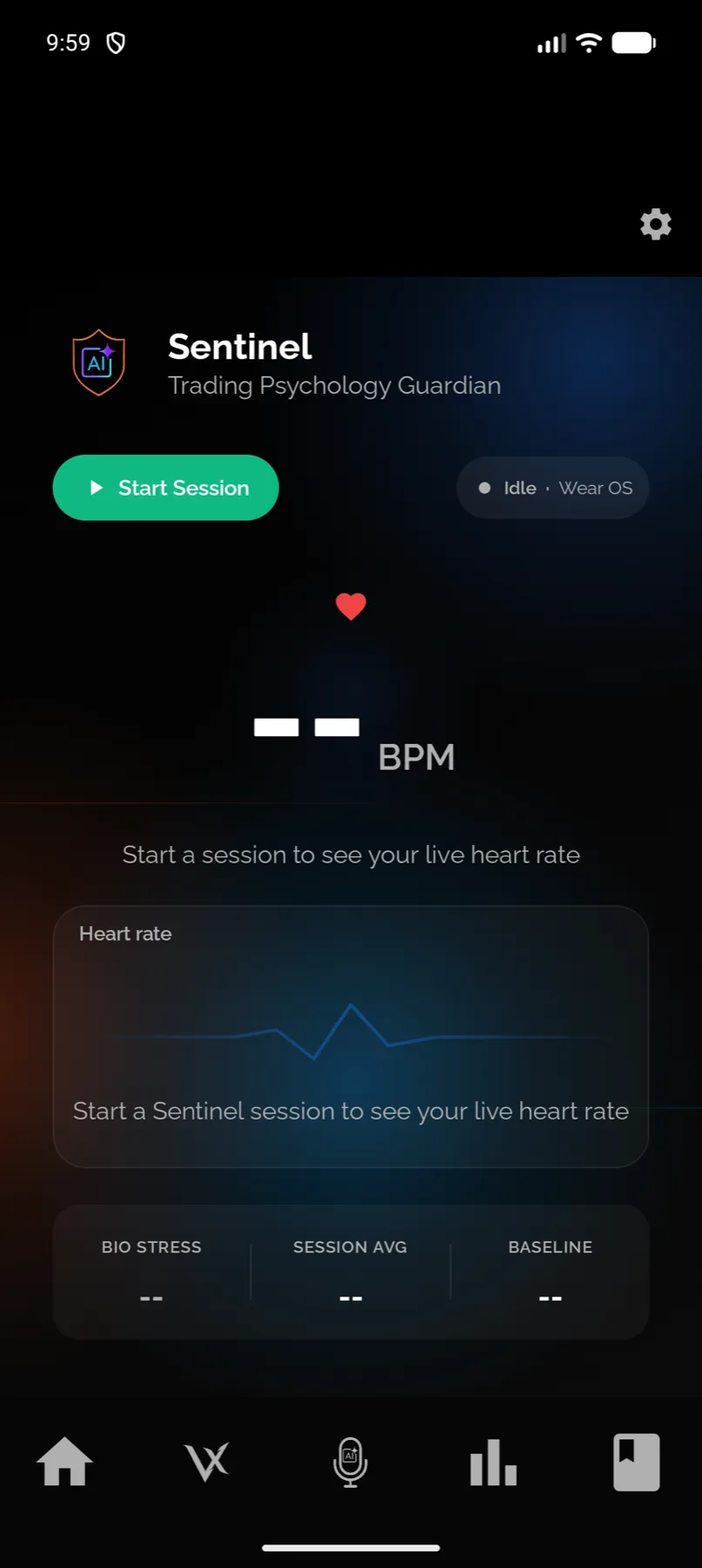
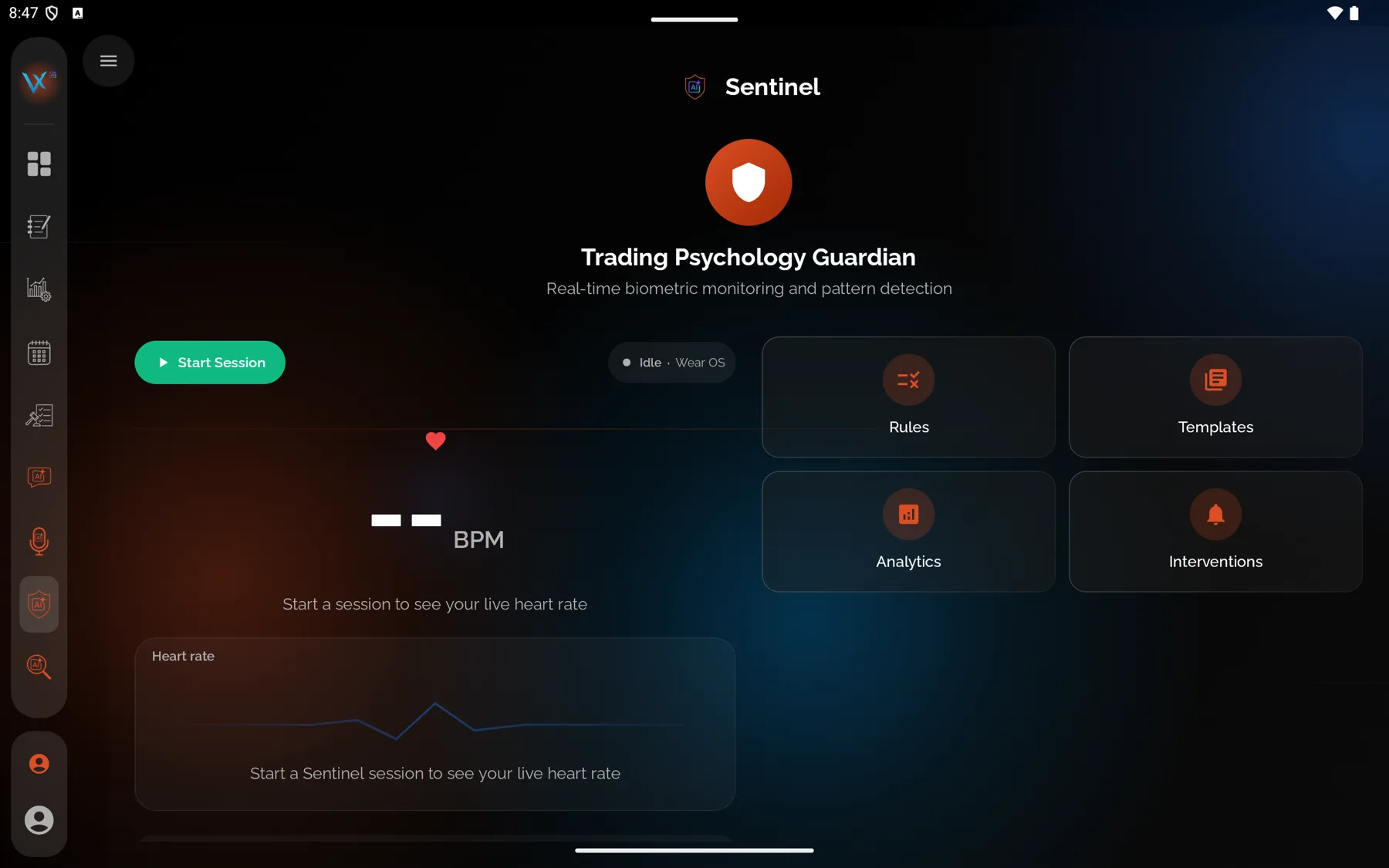
On Android tablet the live card carries the same Start Session control as the phone, because the tablet reuses that card. Do not rely on it. The strap or watch talks to your phone over Bluetooth, so a session started on the tablet has no source of readings of its own.
Everything else on the tablet is real: rules, templates, analytics, intervention history and the Sentinel settings all work, and changes you make there apply to your account everywhere.
iPad calls the history page Interventions. Every other surface calls it Intervention History. Same thing.
Steps
- Start a session on your iPhone or on the web.
- On the iPad, open Sentinel from the sidebar.
- Watch the live card mirror the phone’s session.
- Use the sidebar for Trading Rules, Rule Templates, Session Analytics, Interventions and Sentinel Settings.
- Start a session on your Android phone or on the web.
- On the tablet, open Sentinel from the sidebar.
- Watch the live card mirror the phone’s session.
- Use the navigation cards for rules, templates, analytics and intervention history.
What you should see
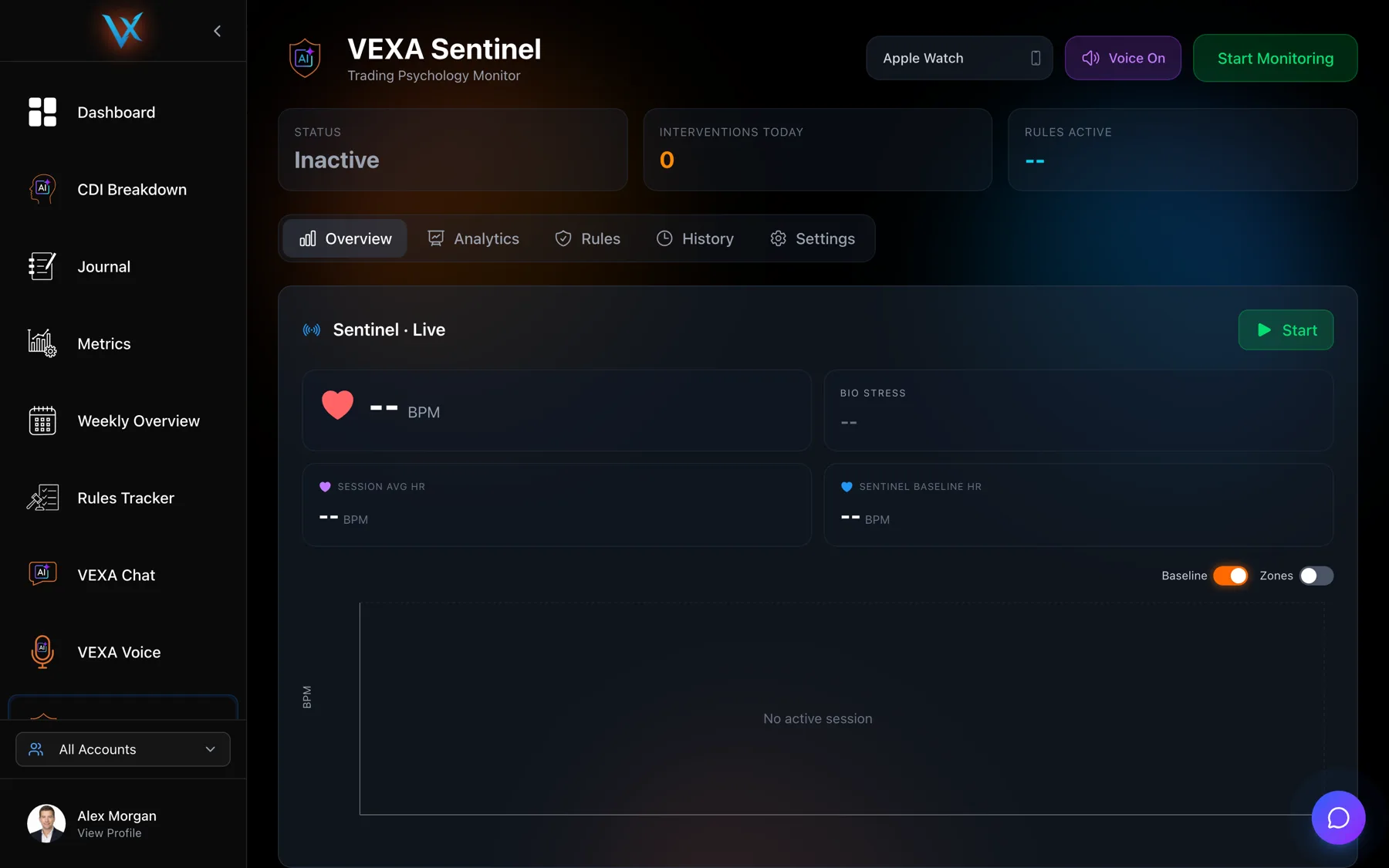
Before a session: the idle notice on iPad, and -- in every vital on both tablets.
During a session: the same heart rate, deviation, Bio Stress, session average and chart your phone is showing, updating at the same time. Interventions appear here as they fire.
Rules you create or edit on the tablet show up on your phone and on the web, because rules live on your account rather than on a device.
If it doesn’t work
The tablet shows nothing while your phone shows a live session. The tablet is signed into a different account, or it has lost connectivity. Check the account on both, then pull to refresh.
You tapped Start Session on the Android tablet and nothing was recorded. The tablet has no health source. Stop it and start the session on the phone.
The Open Health Connect Settings button does nothing. Known. That button is dead on the Android tablet. The row above it does open a Health Connect pane, but you cannot grant access from there. Grant Health Connect access on your phone. See Connect Health Connect.
You cannot find Intervention History on iPad. It is called Interventions there.
Related
Still stuck? Email support@vexatrade.ai.