Add or remove a sign-in method
Link Google, Apple or a password to the same VEXA account from the web app, and read the same list on your phone or tablet.
On this page
What this does
Connected Accounts lists the three ways of getting into your VEXA account: Google, Apple, and an email address with a password. Each one that is linked reaches the same account, the same trades and the same subscription. Adding a second method is insurance against losing the first one.
Before you start
Linking and unlinking is done in the web app. On iPhone, iPad, Android phone and Android tablet the card is there so you can see which methods are attached, which is the fastest way to spot a split account, but the changes are made on the web.
You cannot remove your last remaining method. VEXA blocks it. An account with no way in is an account nobody can recover, including us.
Adding a password is a separate flow from linking Google or Apple. See Set or change your password.
Steps
- Open
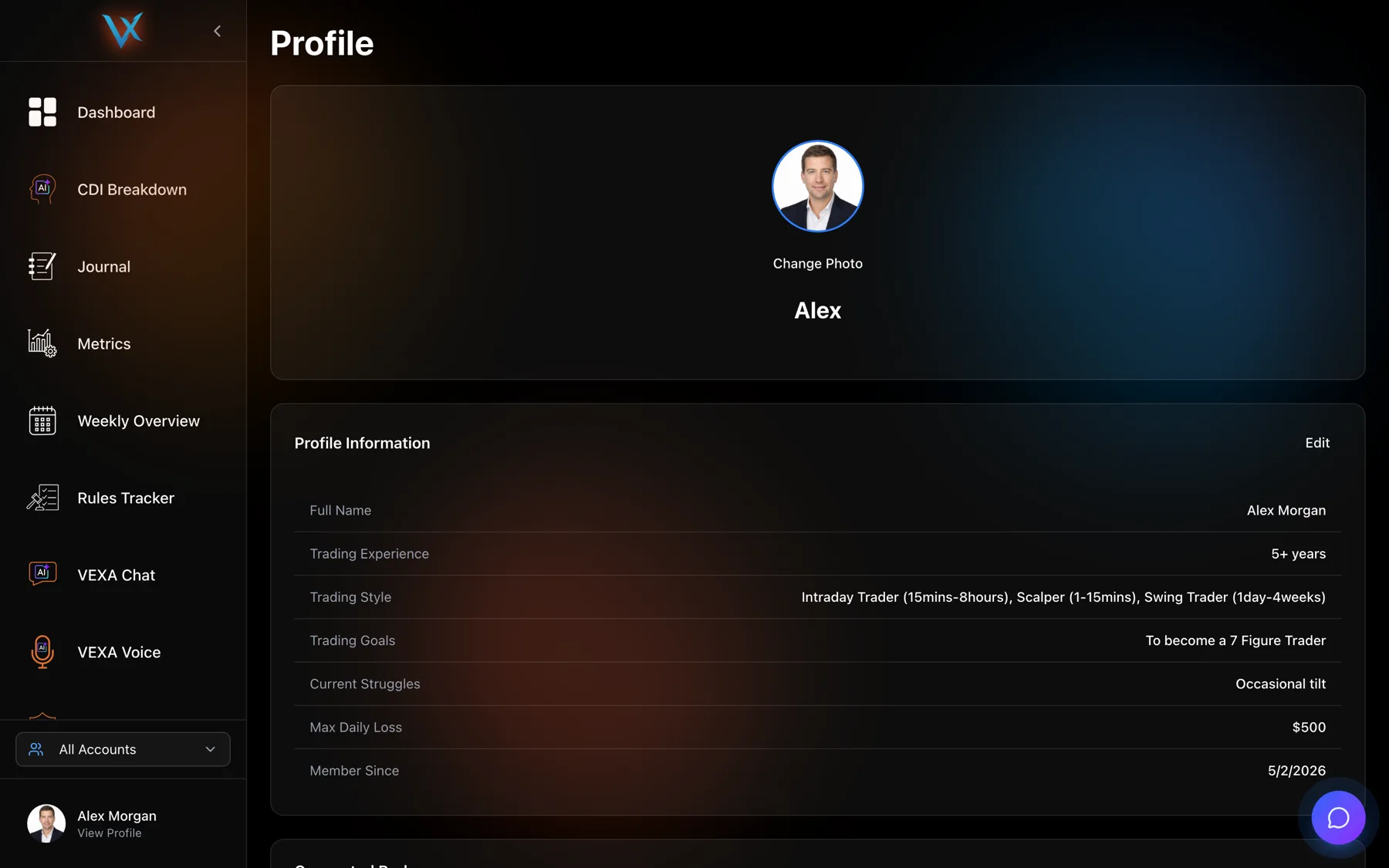
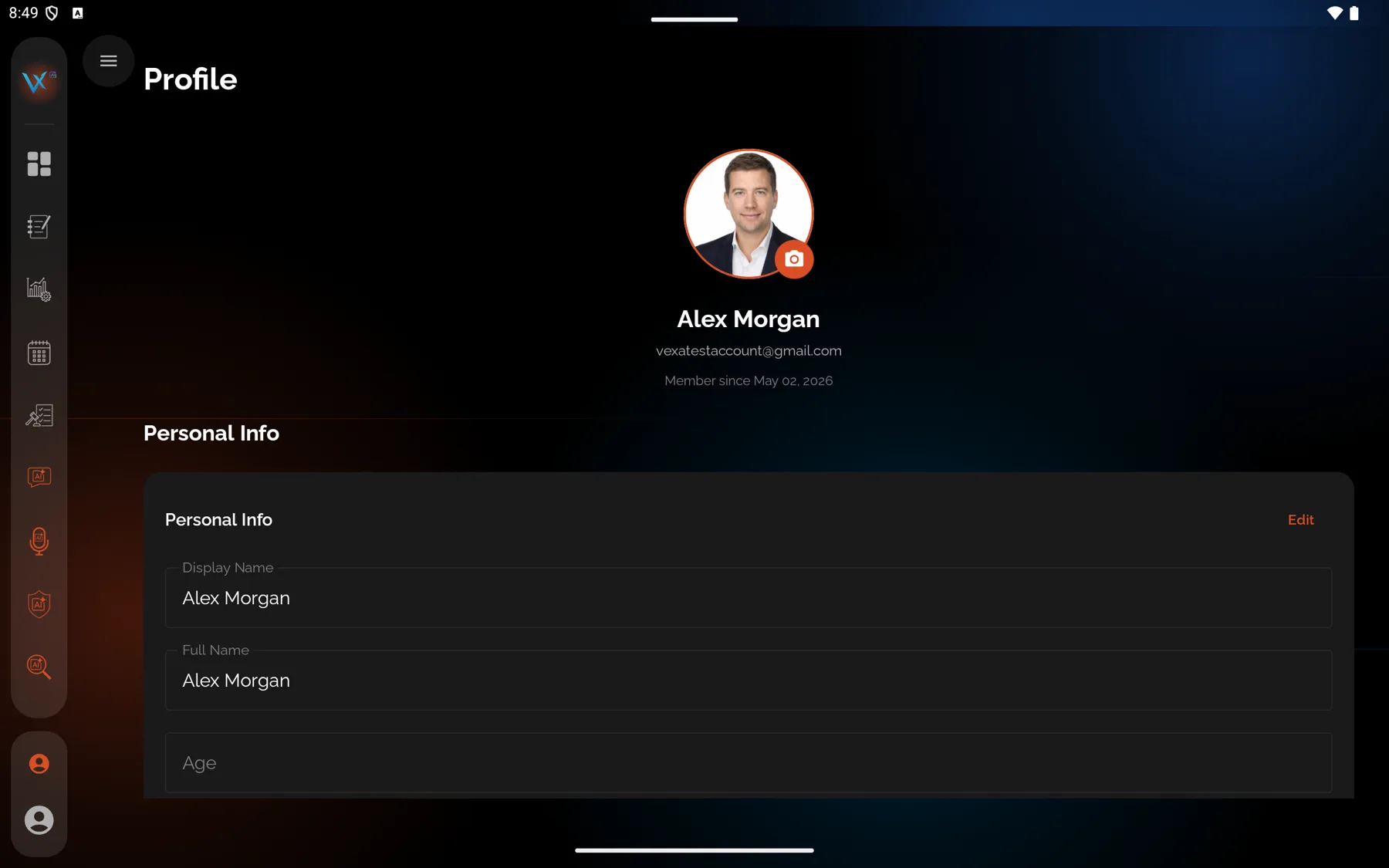
app.vexatrade.aiand sign in. - In the sidebar, click your name at the bottom, under which it reads View Profile.
- Scroll to Connected Accounts.
- Next to a method that is not linked, click Link, and finish in the window that opens.
- To remove one, click Unlink next to it and confirm.
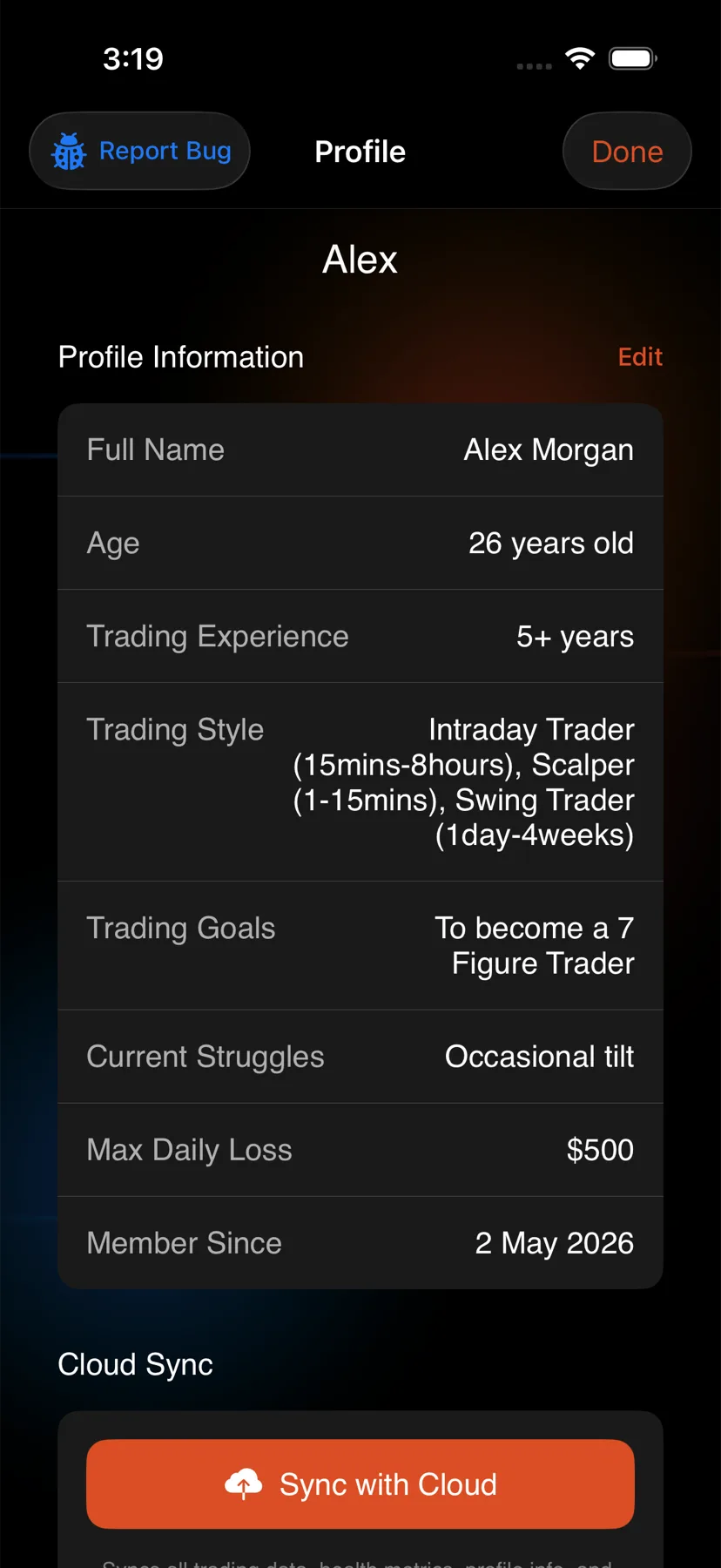
- Open the app and tap the circular avatar at the top right of Home.
- Scroll to Connected Accounts.
- Read which of Google, Apple and email are attached to your account.
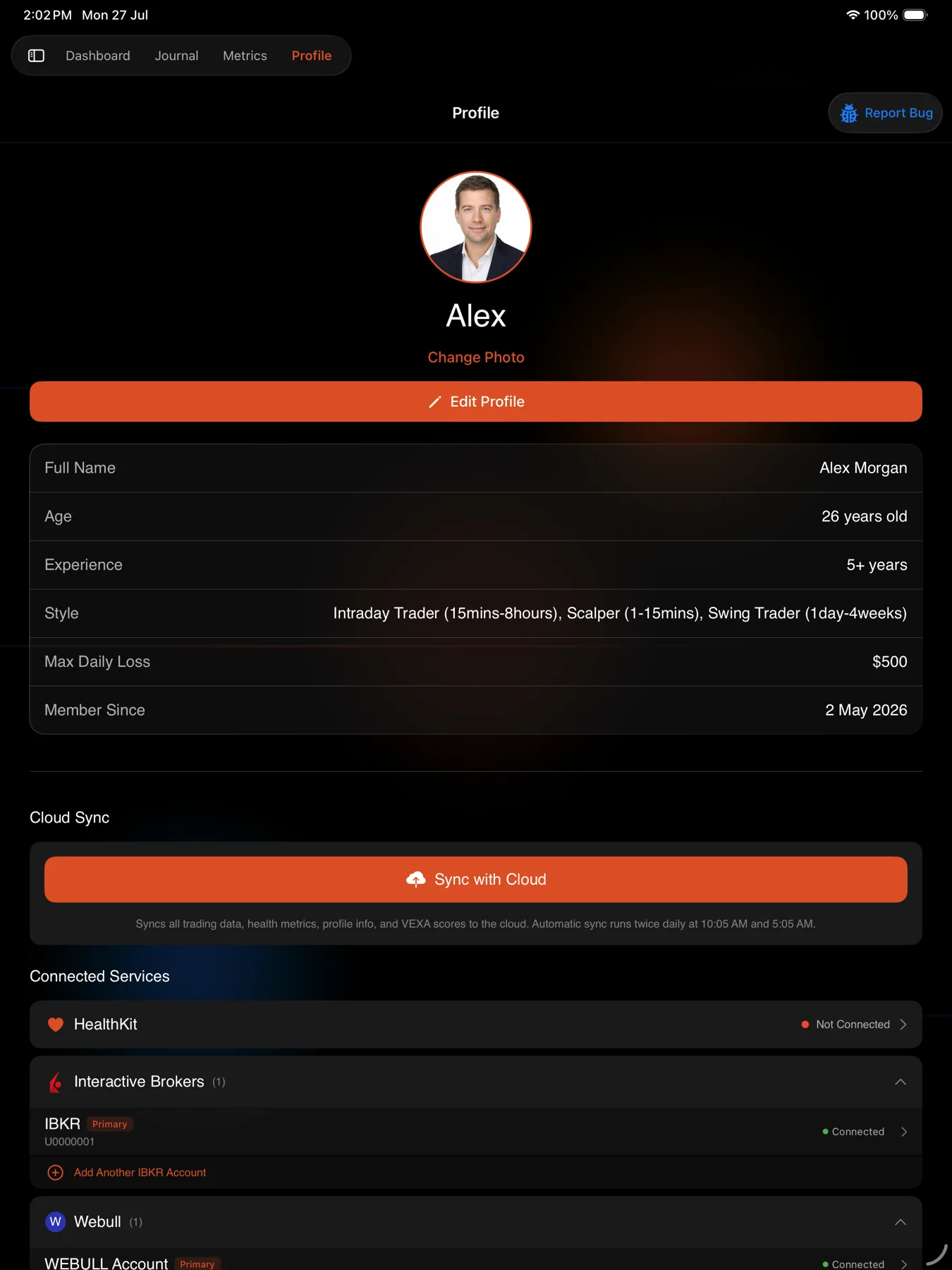
- Open the app and tap the profile chip at the bottom of the sidebar.
- Scroll to Connected Accounts.
- Read which of Google, Apple and email are attached to your account.
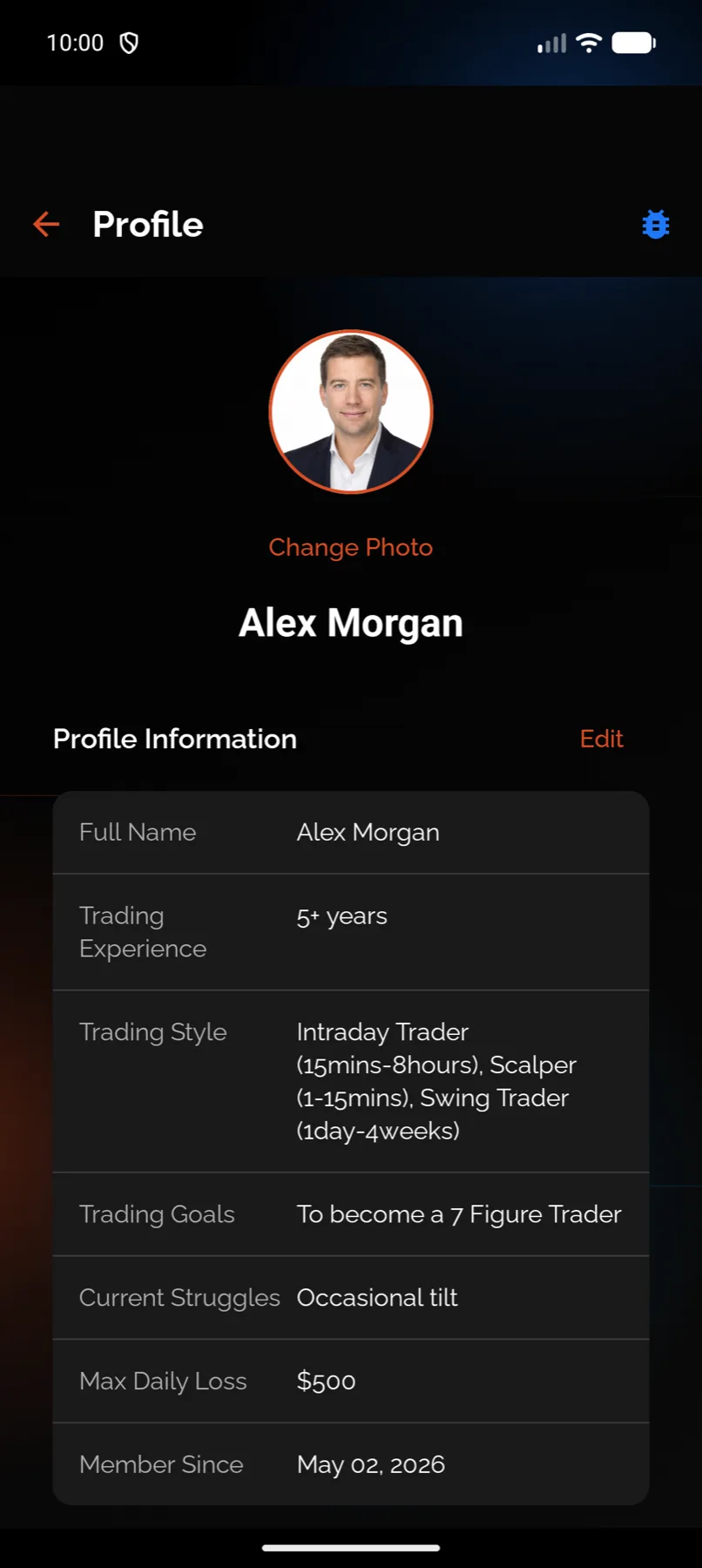
- Open the app and tap the circular avatar at the top right of Home.
- Scroll to Connected Accounts.
- Read which of Google, Apple and email are attached to your account.
- Open the app and tap the profile chip at the bottom of the sidebar.
- Scroll to Connected Accounts.
- Read which of Google, Apple and email are attached to your account.
What you should see
Three rows: Google, Apple, and Email & password. Each shows whether it is linked. On the web, a linked row offers to unlink and an unlinked row offers to link.
After linking a second method, sign out and sign in with the new one once. You should land in the same account, with the same trades and the same plan. If you land somewhere empty, you have two accounts rather than one linked account, and support can merge them.
If it doesn’t work
Unlink is refused. You are trying to remove the only method on the account. Link a second one first, then remove the one you wanted gone.
Linking Apple does nothing useful because the address is private. Apple’s Hide My Email gives VEXA a relay address you never see, so it cannot be used as a sign-in you type. See Using Apple Hide My Email.
The account you see after signing in with the second method is empty. The two methods are on two
separate accounts rather than one. Do not subscribe on the empty one. Write to
support@vexatrade.ai with both email addresses.
Related
Still stuck? Email support@vexatrade.ai.