I can't sign in
Why sign-in fails, including the Apple private-relay rejection and the rule that stops you removing your last sign-in method.
On this page
What this does
Almost every failed sign-in is one of four things: the wrong method, a hidden email address, too many attempts in a row, or an account that already exists under a different provider.
Before you start
You have one VEXA account per email address. Google, Apple and email with a password are three doors into the same account, not three accounts. Signing in with a different door than last time is the single most common cause of “my data is gone”, because it can land you in a fresh account.
The four causes
1. You used a different method than last time
If you created your account with Google and then type that same address with a password, VEXA does not silently merge them. You get: “An account with this email is already linked to Google. Please sign in with Google to access your account.” Use the button named in that message.
2. Apple’s Hide My Email
Sign in with Apple can give VEXA a relay address ending in privaterelay.appleid.com instead of your
real one. That address works for signing in with Apple and nothing else, so VEXA refuses to set a
password on it. You see: “Set password not available, you’re using Apple’s Hide My Email. Link Google
instead for a second sign-in method.”
Two ways forward:
- Give VEXA your real email address from Connected Accounts, confirm it from the link VEXA emails you, then set a password. Your Apple sign-in keeps working.
- Or link Google as your second method and skip passwords entirely.
If you cannot do either right now, keep using the Apple button. It has not stopped working.
3. Too many attempts
After several failures in a short window you get “Too many attempts” and sign-in pauses for a few minutes. This is a security limit, not a lockout. Waiting is the fix. Resetting your password does not clear it faster.
4. You are trying to remove the wrong method
VEXA will not let you unlink your last remaining sign-in method, because doing so would leave you with no way back into your own account. The Unlink button is disabled once you are down to one provider. Link a second method first, then unlink the one you wanted gone.
Steps
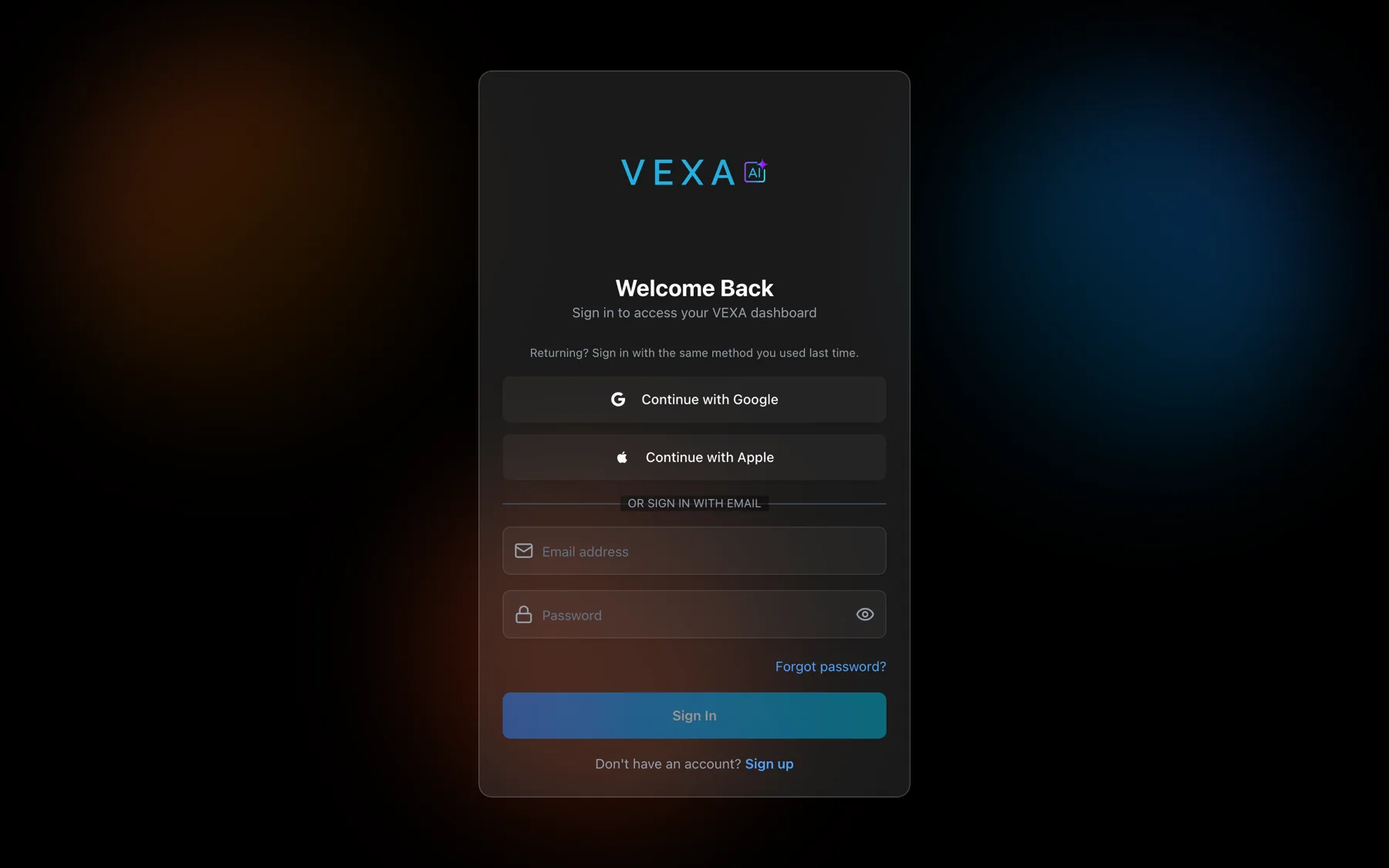
- On the sign-in page, use the same button you used when you created the account.
- Forgotten which one? Enter your email and choose Forgot Password. If the account is Apple-only, VEXA replies with an email titled “About signing in to VEXA” instead of a reset link, which tells you the answer.
- Once you are in, open the sidebar footer card and choose View Profile.
- Scroll to Connected Accounts and link a second method so this cannot happen again.
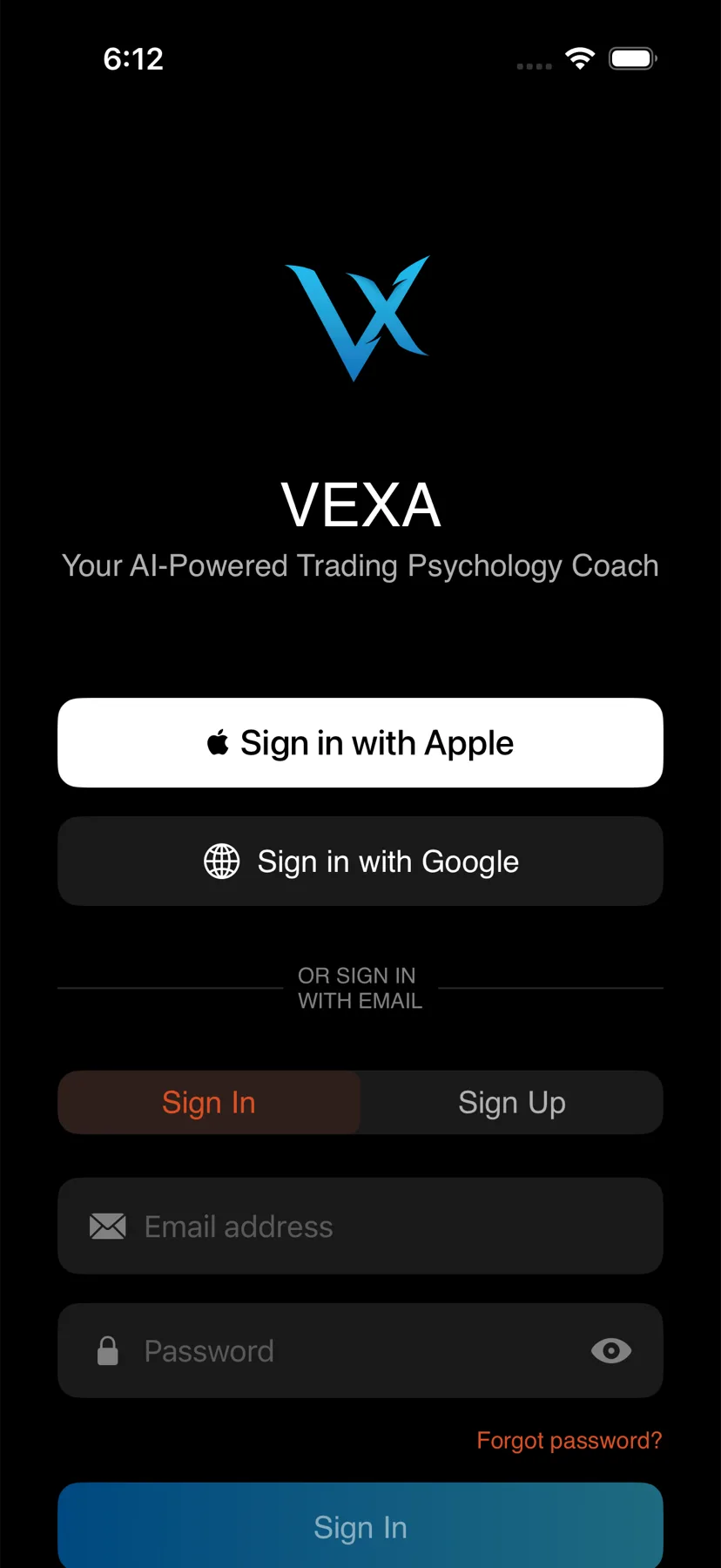
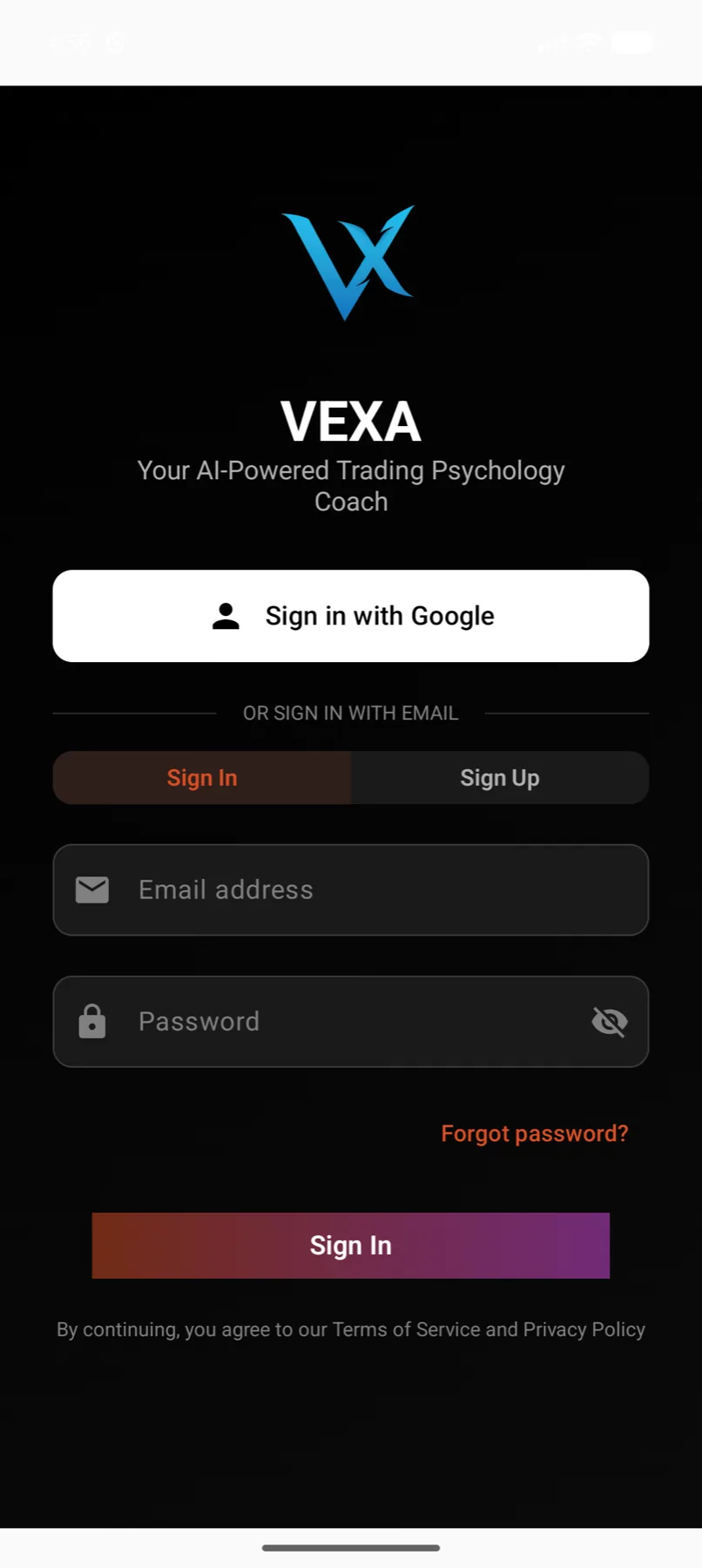
- On the sign-in screen, use the same button you used when you created the account.
- Once you are in, tap the circular avatar at the top right of Home.
- Scroll to Connected Accounts to see which providers are on your account.
- Linking and unlinking are done on the web. Sign in at the web app to change them.
- On the sign-in screen, use the same button you used when you created the account.
- Once you are in, open the profile chip at the bottom of the sidebar.
- Scroll to Connected Accounts to see which providers are on your account.
- Linking and unlinking are done on the web. Sign in at the web app to change them.
- On the sign-in screen, use the same button you used when you created the account.
- Once you are in, tap the circular avatar at the top right of Home.
- Scroll to Connected Accounts to see which providers are on your account.
- Linking and unlinking are done on the web. Sign in at the web app to change them.
- On the sign-in screen, use the same button you used when you created the account.
- Once you are in, open the profile chip at the bottom of the sidebar.
- Scroll to Connected Accounts to see which providers are on your account.
- Linking and unlinking are done on the web. Sign in at the web app to change them.
What you should see
You land on your dashboard with your own trades in it. Connected Accounts lists every provider attached to the account, and at least one of them is marked as linked.
Two rules worth knowing before they bite
- Setting a password signs you out everywhere else. The device you set it on stays signed in. Every other device you own has to sign in again with the new password.
- A password reset email never confirms whether the account exists. The wording is deliberately the same either way, so that nobody can use the reset form to test which email addresses have VEXA accounts.
If it doesn’t work
- You are in, but the account is empty. You are probably in a second account created through a different provider. Sign out, then sign back in with the other method. See VEXA shows the wrong name if the name is what looks wrong.
- The message quotes a code starting with
auth/. Look it up in Error messages explained. - You no longer have access to the email address on the account. That one needs a human. See Contact support.
Related
Still stuck? Email support@vexatrade.ai.