Start a voice session
Open VEXA Voice, grant the microphone, and know what each state on the screen means while you talk.
On this page
What this does
Starts a spoken conversation with your coach. You talk, VEXA answers out loud, and the conversation is transcribed as you go.
It is the same coach as the typed chat, with the same access to your trades and the same memory of what you have discussed before.
Before you start
Voice is gated by the AI consent dialog on every surface, web included. Agree to it once. See Give or revoke AI consent.
Your device asks for microphone access the first time you connect. Voice cannot work without it.
Voice needs VEXA Pro on every surface, beyond the free plan’s taste of 5 voice minutes a month. Use those up and you get a locked screen offering Pro rather than the orb.
Minutes are counted against your plan, and there are two daily caps on top. See Voice and chat limits.
Headphones are worth using. Speaking through a speaker lets VEXA hear itself, which can make it stop mid-sentence.
Steps
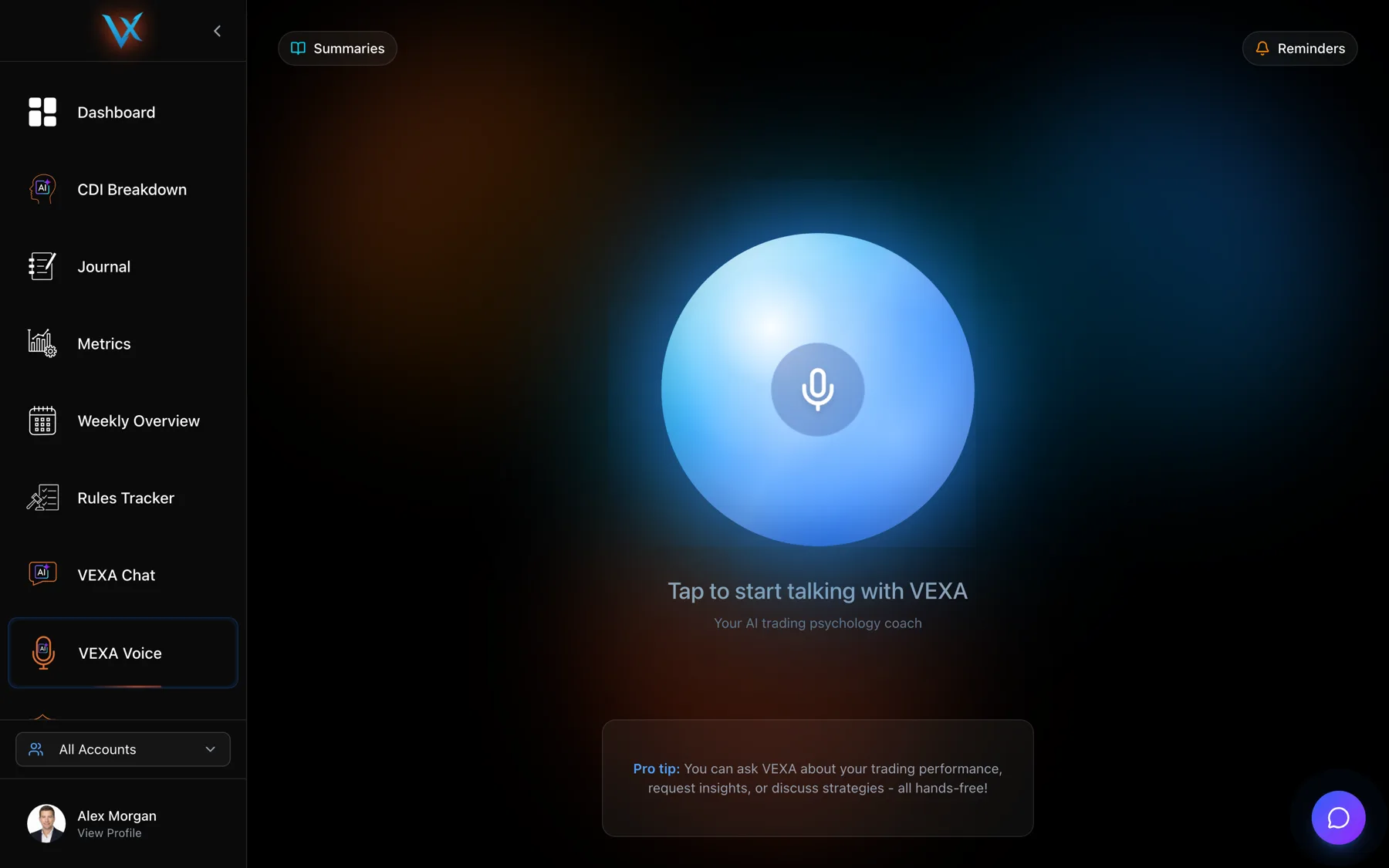
- Click VEXA Voice in the sidebar.
- Click the orb.
- Allow microphone access when the browser asks.
- Wait for the state to change to listening, then talk.
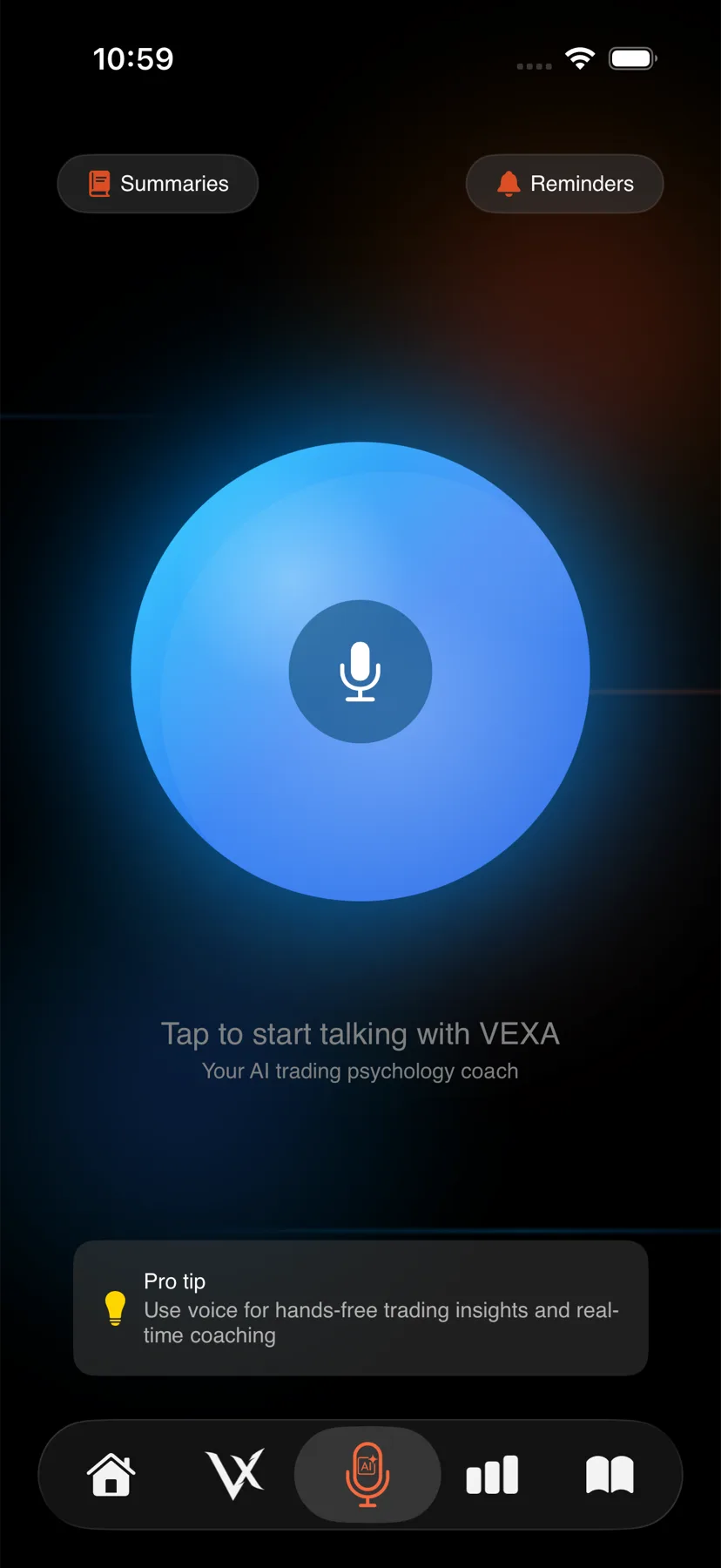
- Tap the third tab in the bar at the bottom, the voice mark.
- Tap the orb.
- Allow microphone access when iOS asks.
- Wait for the state to change to listening, then talk.
- Tap Voice in the sidebar.
- Tap the orb.
- Allow microphone access when iPadOS asks.
- Wait for the state to change to listening, then talk.
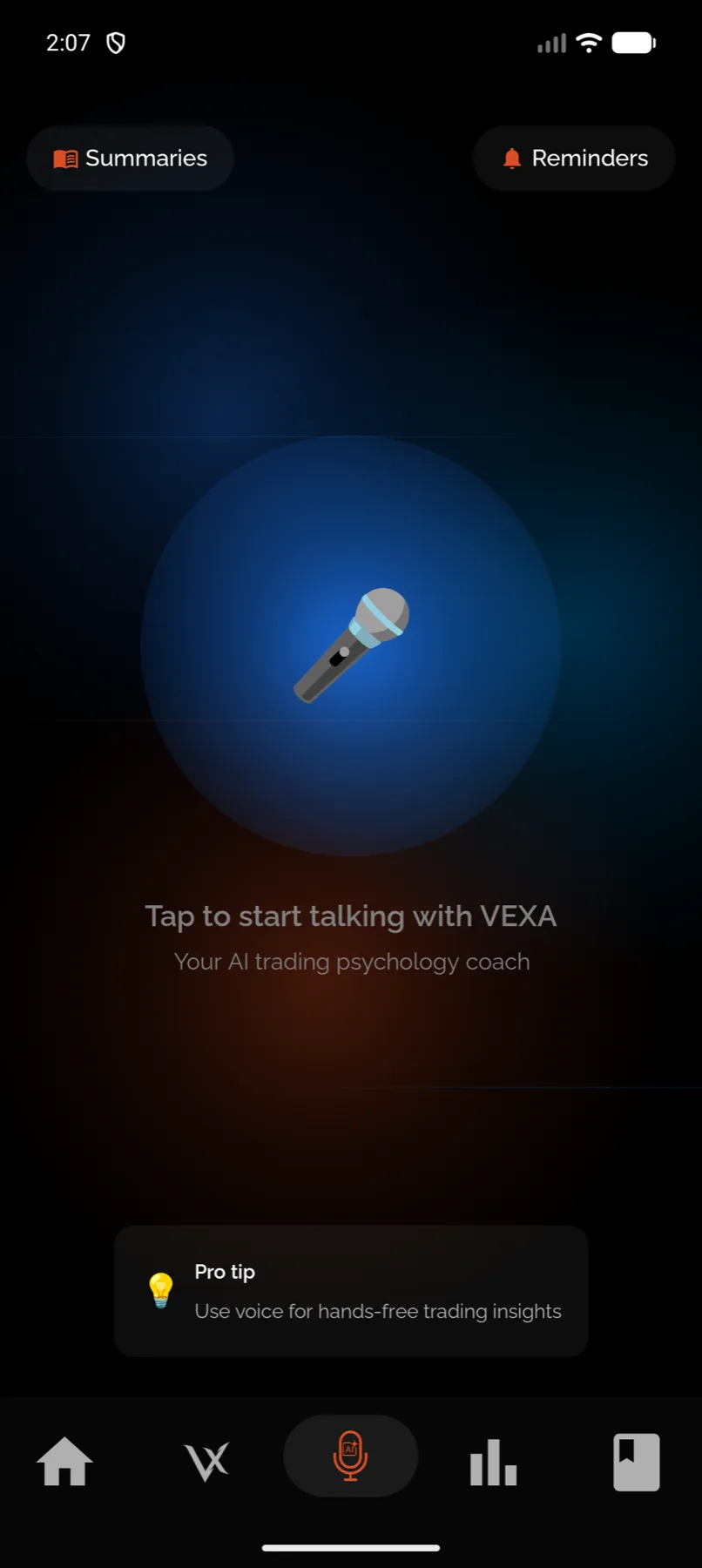
- Tap the third tab in the bar at the bottom, the voice mark.
- Tap the orb.
- Allow microphone access when Android asks.
- Wait for the state to change to listening, then talk.
- Tap VEXA Voice in the sidebar.
- Tap the orb.
- Allow microphone access when Android asks.
- Wait for the state to change to listening, then talk.
What you should see
The screen tells you what is happening in one line under the orb:
| State | What it says | What it means |
|---|---|---|
| Idle | ”Tap to start talking with VEXA” | Nothing is connected yet |
| Connecting | A line about ringing up your trading psychologist | The call is being set up, usually a couple of seconds |
| Listening | ”Listening…” | Your microphone is open |
| Thinking | ”VEXA is thinking…” | Your question is being worked on, sometimes with a look-up |
| Speaking | ”VEXA is speaking…” | You are hearing the answer |
A timer counts up from the moment you connect, and the transcript fills in underneath as both of you talk.
VEXA usually opens by greeting you and referring to your last session, so the first thing you hear should be about you rather than a generic welcome.
Starting voice from somewhere else
- On the web, the chat bubble in the bottom right has a microphone toggle that starts the same session without leaving the page you are on.
- From a journal day you can start a session with that day loaded. See Journal voice sessions.
- During a Sentinel session, VEXA can speak to you without you starting anything.
If it doesn’t work
The consent dialog appears. Voice needs it on every surface. Agree and reconnect.
It stays on connecting. Your microphone permission was refused, or the network is blocking the connection. Check the microphone permission for VEXA in your device or browser settings, then try again.
“Voice is temporarily unavailable.” One message covers several causes, including running out of monthly minutes and hitting a daily cap. Check your usage first. See Voice and chat limits.
VEXA cannot hear you. Check you are not muted, and that the browser or app has the right input device. See Voice troubleshooting.
Related
Still stuck? Email support@vexatrade.ai.