Your first hour in VEXA
Connect a broker, get your trades in, calculate your first score, and ask the coach a question, in that order.
On this page
What this does
Takes a new account from empty to useful. Four things have to happen in order, because each one feeds the next: connect a broker, get your trades in, calculate a score, then ask the coach something. Skip the first and the last three have nothing to work with.
Before you start
Find out how your broker connects before you begin. Nine of the twenty one supported brokers sync automatically today. The rest need you to export a file from the broker and upload it. Both are supported, and they are different jobs.
If you have to upload a file, do it on the web app. It has the largest file preview and the AI import, and phone screens make reconciling columns unpleasant.
Most of this runs inside Full Access, so nothing is locked while you do it.
Give the first import room. A large history can take a few minutes, and the score is calculated from what lands.
Steps
1. Connect your broker
- Click your name at the bottom of the sidebar, then View Profile.
- Scroll to Connected Brokers.
- Click Connect Your First Broker, then Add Broker Connection.
- Find your broker and click Connect next to it.
- Follow the on-screen setup. Brokers that sync automatically ask for a token or send you to the broker to sign in. Brokers that do not will open Manual Upload instead.
- Open Home, then tap the circular avatar at the top right.
- Tap Connected Services.
- Tap Add Broker, then Select Broker.
- Choose your broker and follow its setup.
- If your broker uploads files rather than syncing, use the Manual Upload side of the Account Details control.
- Tap your name at the bottom of the sidebar, then View Profile.
- Tap Connected Services.
- Tap Add Broker, then Select Broker.
- Choose your broker and follow its setup.
- If your broker uploads files rather than syncing, use the Manual Upload side of the Account Details control.
- Open Home, then tap the circular avatar at the top right.
- Tap Connected Brokers.
- Tap Add Another Broker, then pick from Select Broker.
- Tap Connect next to your broker and follow the setup.
- If your broker uploads files rather than syncing, switch to the Manual Upload tab.
- Tap the profile chip at the bottom of the sidebar.
- Tap Connected Brokers.
- Tap Select Broker and choose yours.
- Tap Connect next to it and follow the setup.
- If your broker uploads files rather than syncing, switch to the Manual Upload tab.
2. Get your trades in
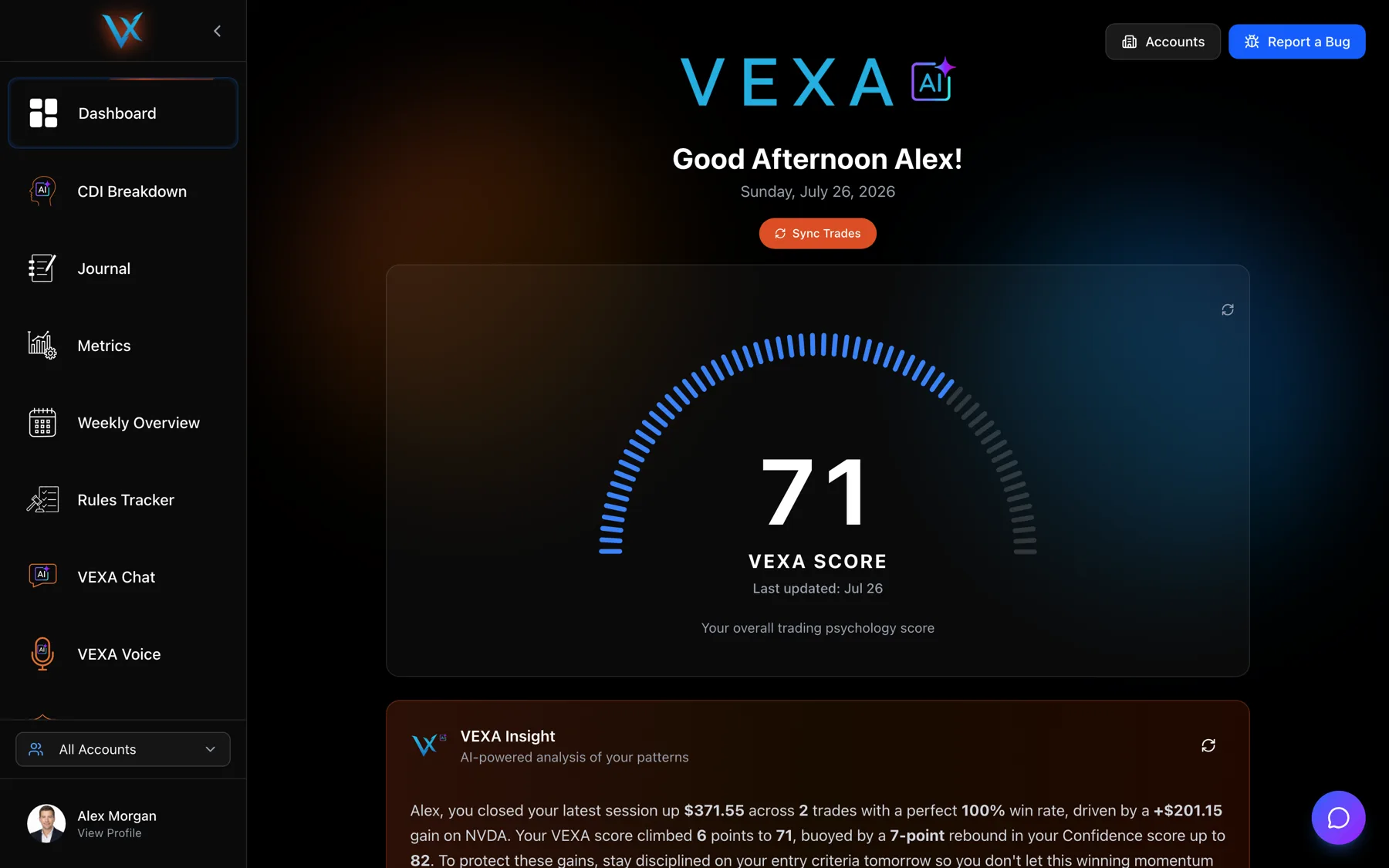
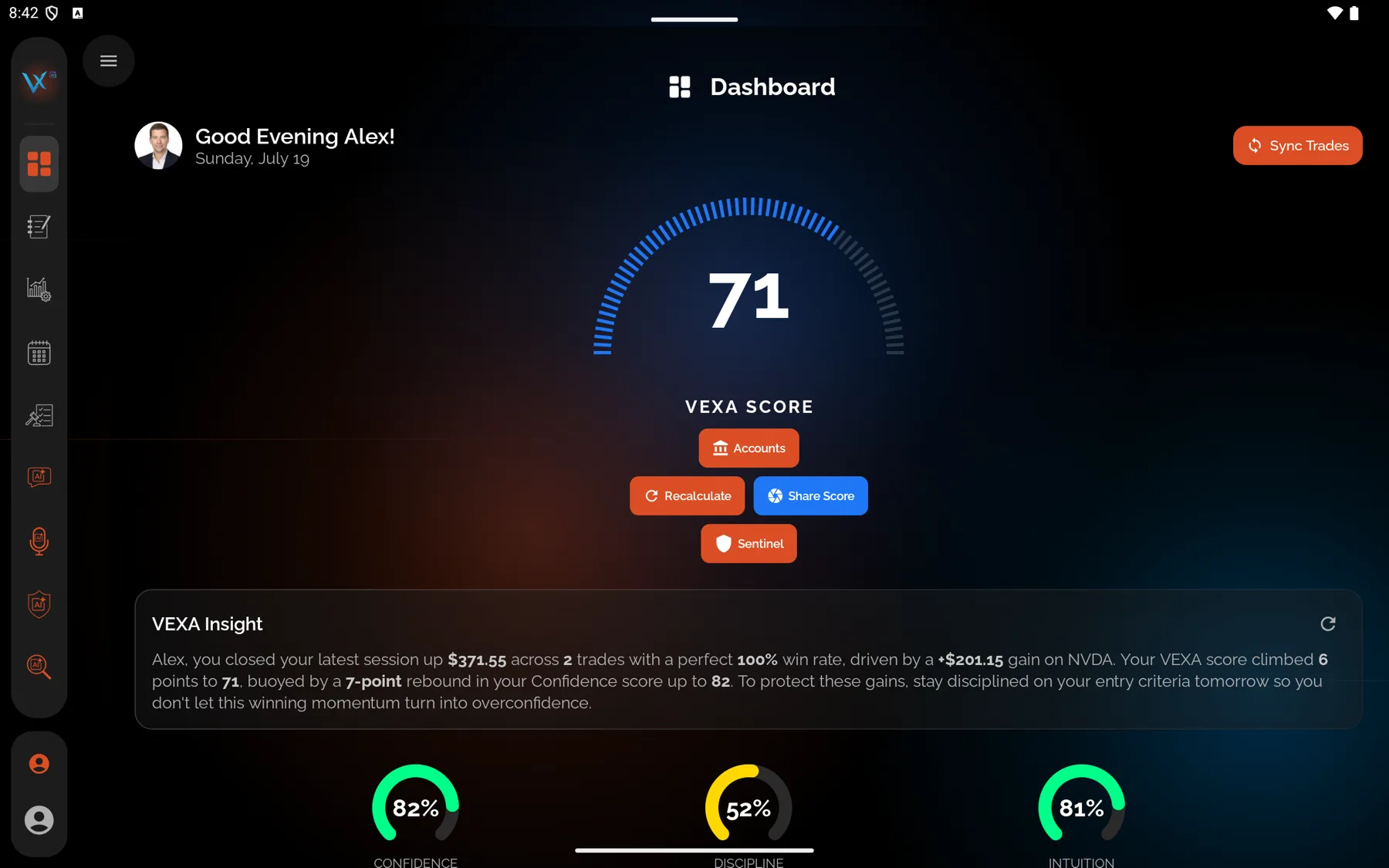
- For a broker that syncs, open Dashboard and click Sync Trades.
- For a broker that does not, open its page and use Manual Upload, or go to Profile and open the VEXA AI Import / Manual CSV Template card.
- Pick the timezone your file’s times are recorded in, and the timezone you want to read your trades in. The import will not confirm until you have set the display timezone.
- Check the preview of the first ten rows, then confirm the import.
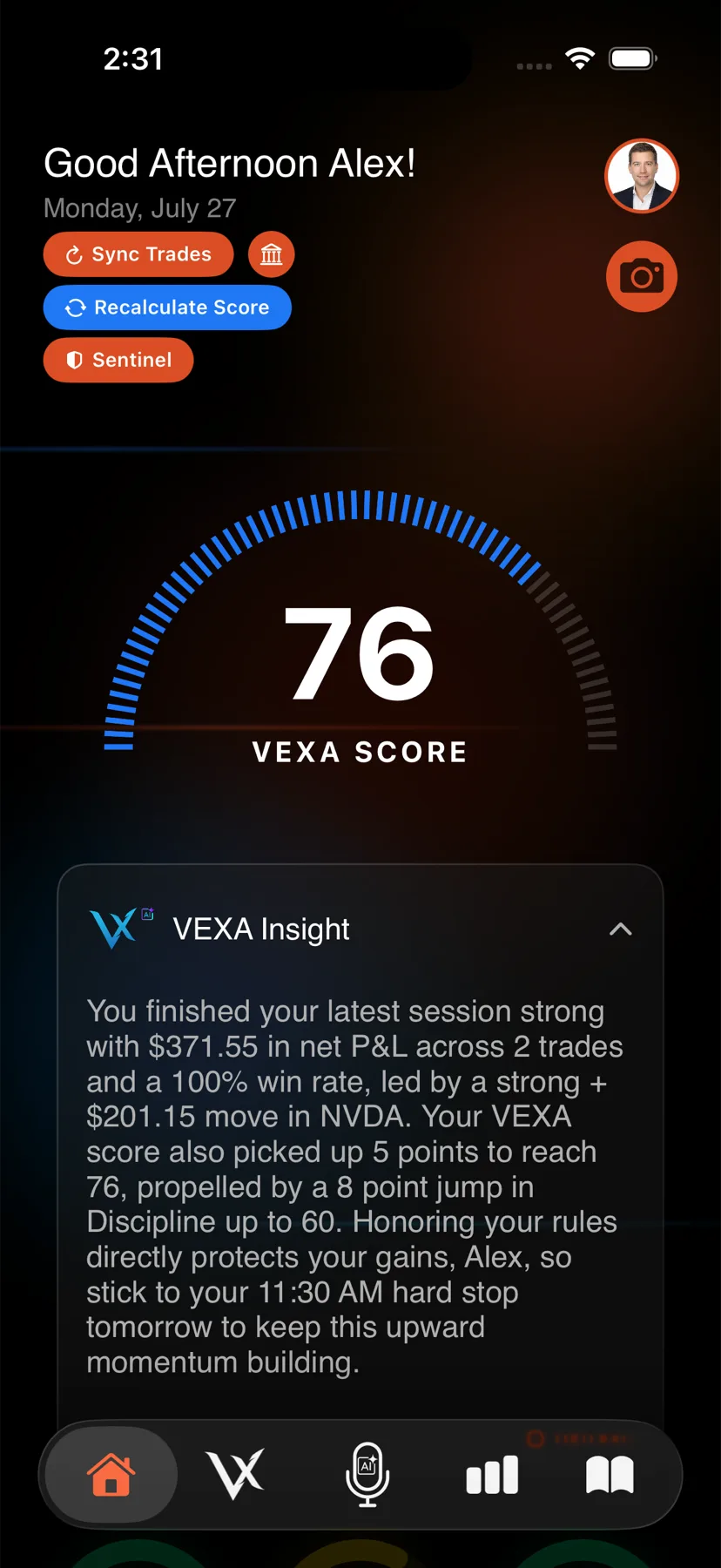
- For a broker that syncs, open Home and tap Sync Trades.
- For a broker that does not, open Profile, tap Connected Services, tap the account, open Account Details, choose Manual Upload, then Select CSV File.
- Set the timezone the file’s times are recorded in before you confirm.
- For a broker that syncs, open Profile, tap Connected Services, and use the refresh control on the account.
- For a broker that does not, open the account, open Account Details, choose Manual Upload, then Select CSV File.
- Set the timezone the file’s times are recorded in before you confirm.
- For a broker that syncs, open Home and tap Sync Trades.
- For a broker that does not, open Profile, tap Connected Brokers, tap the account, and use the Manual Upload tab.
- Set the timezone the file’s times are recorded in before you confirm.
- Open Profile from the sidebar chip, then Connected Brokers.
- Sync the account from there, or open it and use the Manual Upload tab.
- Set the timezone the file’s times are recorded in before you confirm.
3. Calculate your first score
- Open Dashboard.
- Click the small refresh control at the top right of the VEXA Score card.
- Wait. A first calculation runs against your whole imported history and is not instant.
- Open Home.
- Tap Recalculate Score.
- Wait for the confirmation.
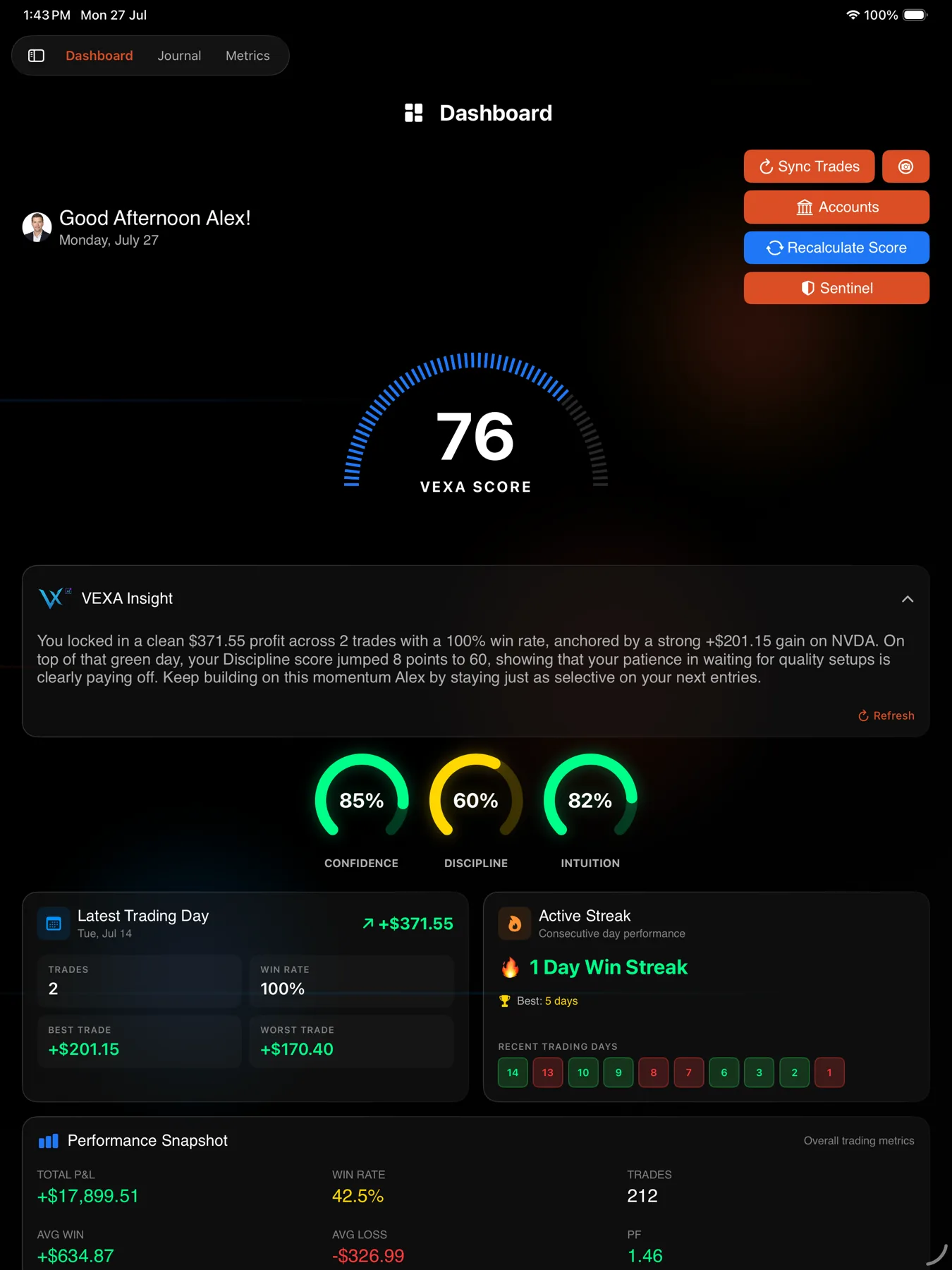
- Open Dashboard from the sidebar.
- Tap Recalculate Score in the action row.
- Wait for the confirmation.
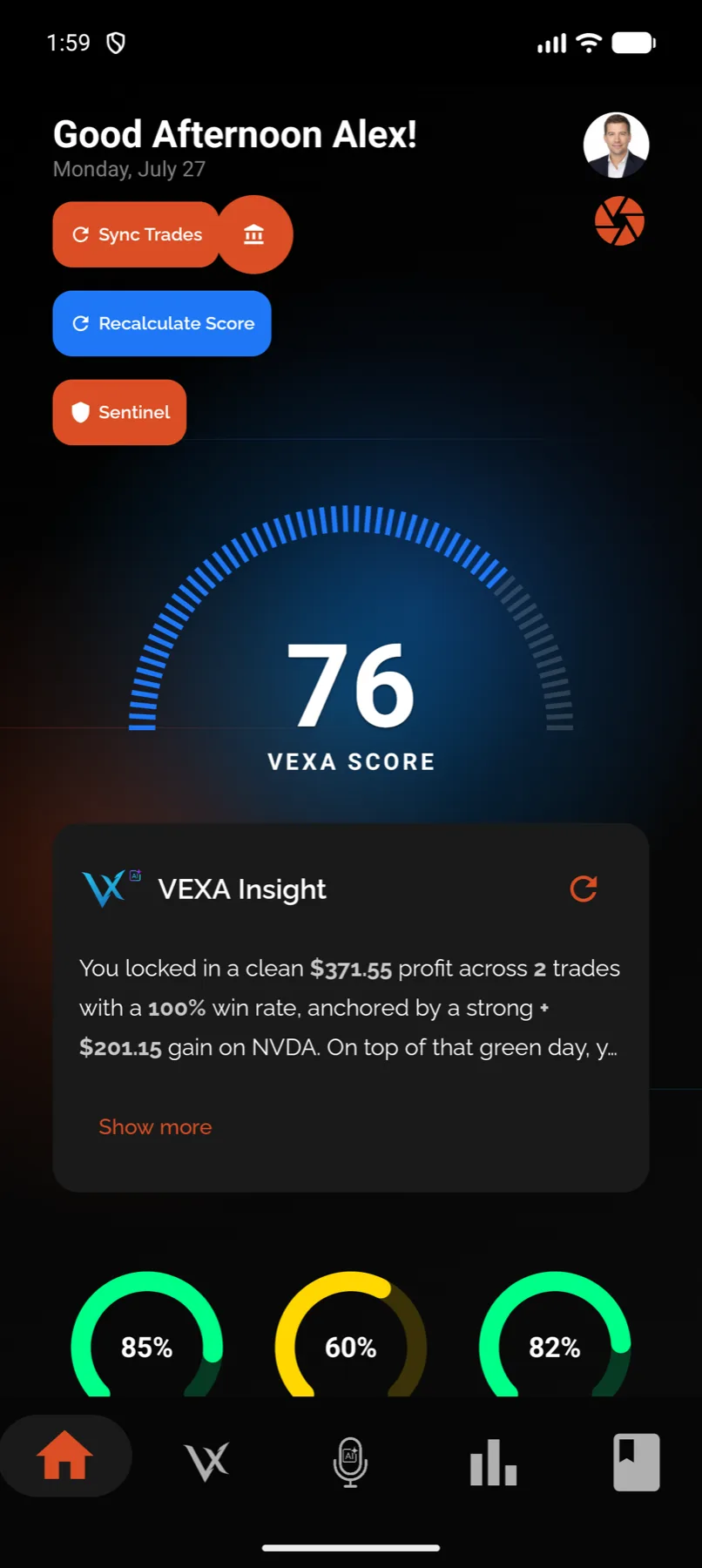
- Open Home.
- Tap Recalculate Score.
- Wait for the confirmation.
- Open Dashboard from the sidebar.
- Tap Recalculate.
- Wait for the confirmation.
4. Ask the coach something
- Click VEXA Chat in the sidebar.
- Ask something only your own data can answer. “Which day of the week do I lose money on” is a better first question than “how do I trade better”.
- Tap the second icon in the tab bar, the VEXA mark.
- Ask something only your own data can answer.
- Click VEXA Chat in the sidebar.
- Ask something only your own data can answer.
- Tap the second icon in the bottom bar, the VEXA mark.
- Ask something only your own data can answer.
- Click VEXA Chat in the sidebar.
- Ask something only your own data can answer.
What you should see
After the import, a count of what came in. Trades created, open positions updated, and duplicates skipped. A duplicate count above zero on a first import is normal if you uploaded overlapping files.
After the recalculation, the gauge shows a number from 0 to 100 and the three CDI rings fill in. Tapping a ring opens its breakdown.
In chat, an answer that quotes your actual symbols, days and figures. If it answers in generalities about trading, your trades have probably not landed yet.
Health values stay at “N/A” until you grant health permissions on an iPhone or an Android phone. That is expected on web and on both tablets.
If it doesn’t work
Sync Trades did nothing except open the broker page. That button only syncs brokers with a live API connection. If yours is file upload only, it quietly sends you to the broker screen instead. Upload a file there.
The API Sync tab shows “Coming Soon”. The broker’s API integration is not switched on yet. Use the Manual Upload tab, which works today.
The score still reads - -. It means “not calculated yet”, not zero. Confirm the trades
actually landed by opening your trades list, then recalculate again.
Every trade in your file was reported as already imported. VEXA matches on the facts of the execution, so re-uploading the same file is safe and does nothing. If you expected new trades, check the date range in the export.
Your trades are on the wrong day. Three timezones are involved: the one inside your file, your broker’s server timezone, and the timezone you read trades in. Trades are always stored in UTC, so changing the display timezone never alters your data.
Related
Still stuck? Email support@vexatrade.ai.