Create your VEXA account
Sign up with Google, Apple or an email address, and understand the two consent boxes you have to tick before the button turns on.
On this page
What this does
Creates the one VEXA account you will use everywhere. There is a single account per person and it carries your trades, your scores and your subscription across all five apps, so it does not matter which device you sign up on.
Before you start
Pick a sign-in method you will still have access to in a year. Google, Apple and email all work, and the account is keyed to the email address behind whichever one you choose.
Use a real, permanent email address. Disposable addresses are rejected at checkout, and the address is where your receipts and any password reset land.
You do not need a card. Every new account starts with a 14-day Welcome Package: Full Access to Pro, no card needed. See Your Welcome Package: Full Access explained.
If you were sent a referral link, open it before you sign up rather than after. On the web the code travels through the sign up and your Welcome Package runs 30 days instead of 14. Referral links only apply on the web.
Steps
- Go to
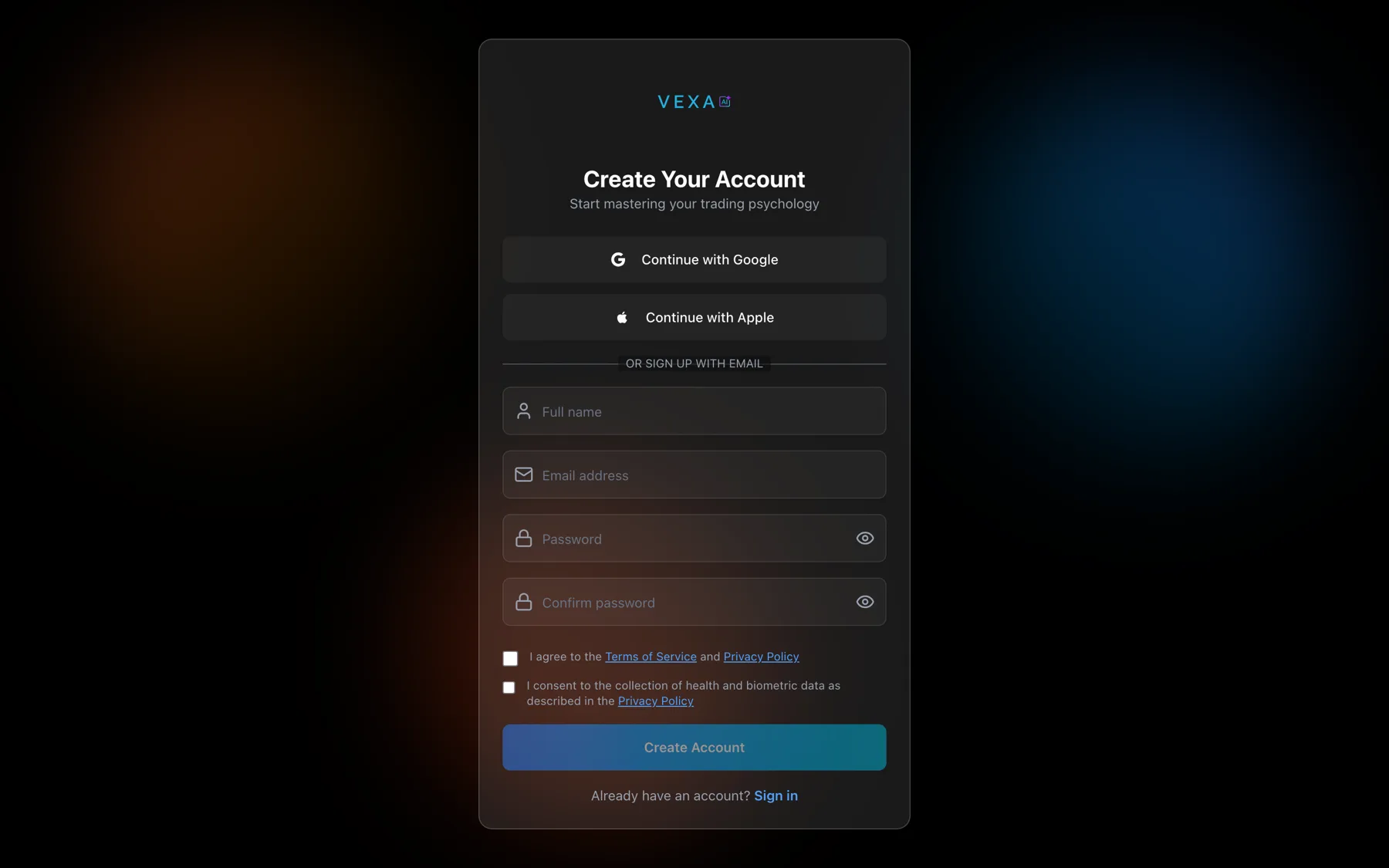
app.vexatrade.ai/signup. - Choose Continue with Google, Continue with Apple, or fill in the email form under OR SIGN UP WITH EMAIL.
- For the email form, enter your full name, your email address, and a password.
- Check the password rules as you type. You need at least 8 characters, one uppercase letter, one lowercase letter, one number and one special character. The strength bar reads Weak, Fair, Good or Strong.
- Retype the password in Confirm password.
- Tick both consent boxes. One covers the Terms of Service and Privacy Policy. The other covers the collection of health and biometric data.
- Press Create Account.
- Open VEXA. Tap through the three welcome pages if this is the first launch on this phone.
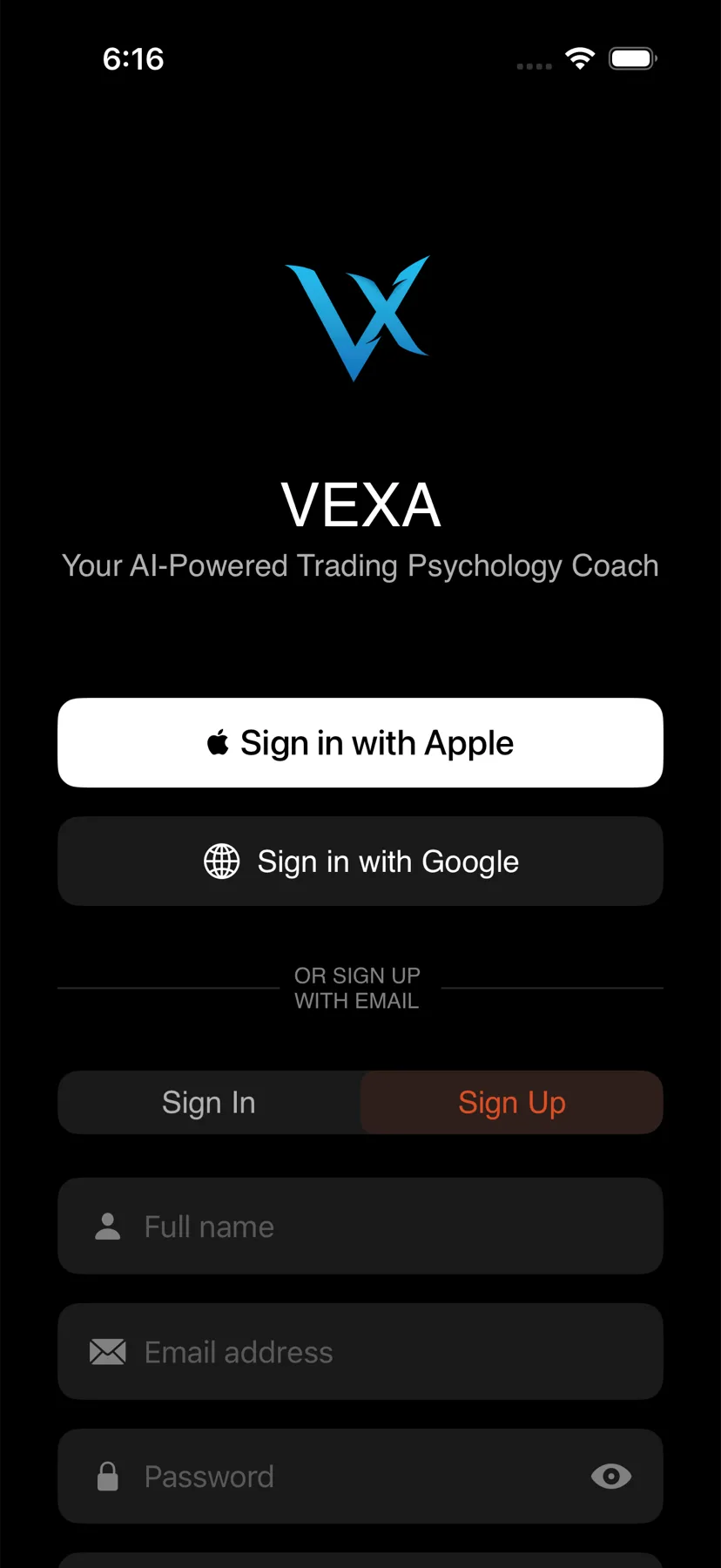
- On the sign-in screen, tap Sign in with Apple or Sign in with Google, or switch the segmented control to Sign Up and use the email form under “or sign up with email”.
- For the email form, enter your full name, your email address and a password, then retype it in Confirm password.
- Tick both consent rows. One covers the Terms of Service and Privacy Policy. The other covers the collection of health and biometric data.
- Tap Create Account. It sits below the consent rows.
- Open VEXA. Tap through the three welcome pages if this is the first launch on this iPad.
- On the sign-in step, tap Sign in with Apple or Sign in with Google, or switch the segmented control to Sign Up and use the email form.
- For the email form, enter your full name, your email address and a password, then retype it in Confirm password.
- Tick both consent rows.
- Tap Create Account.
- Open VEXA. Tap through the three welcome pages if this is the first launch on this phone.
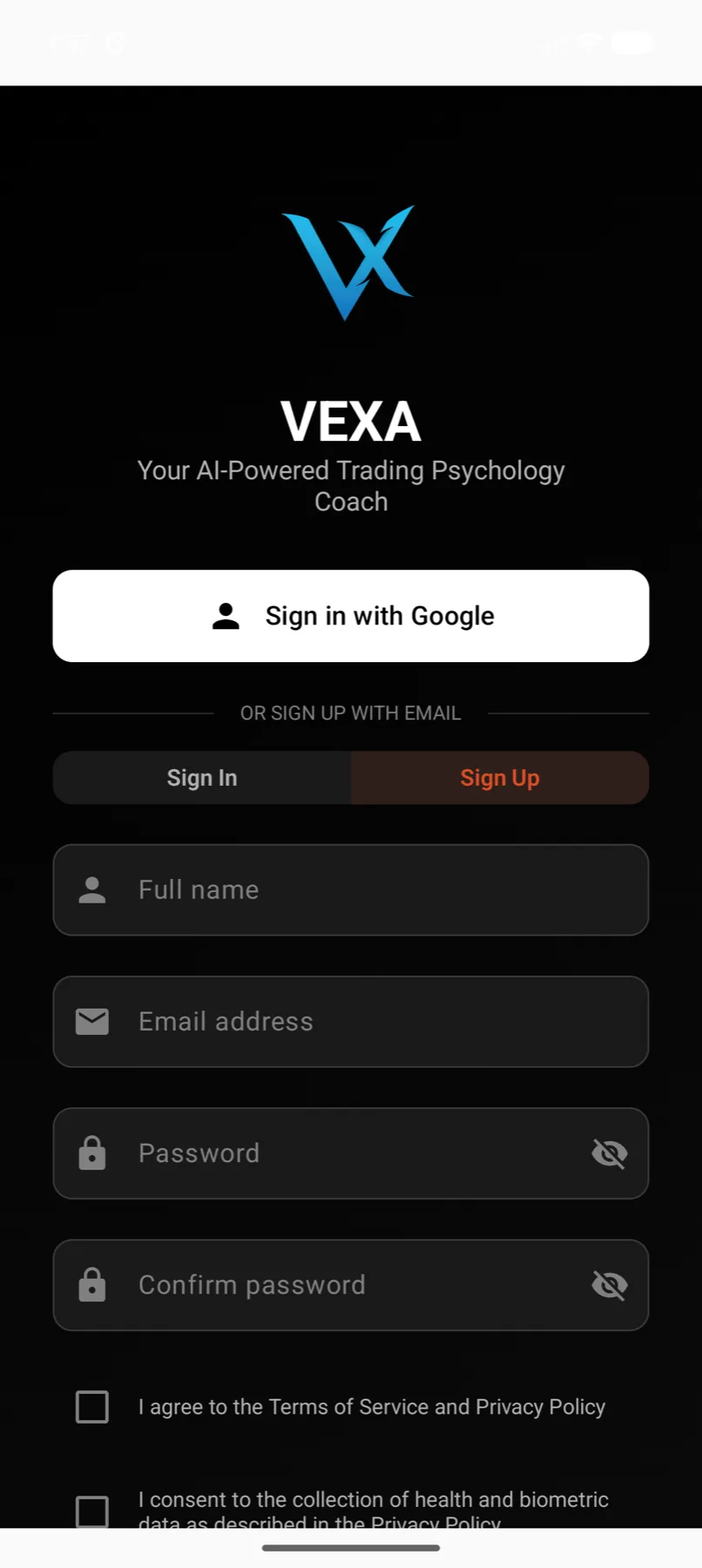
- On the sign-in screen, tap Sign in with Google, or switch the segmented control to Sign Up and use the email form.
- For the email form, enter your full name, your email address and a password, then retype it in Confirm password. A strength bar and a requirements checklist appear as you type.
- Tick both consent rows. Tapping anywhere on the row toggles it.
- Tap Create Account.
- Open VEXA. Tap through the three welcome pages if this is the first launch on this tablet.
- On the sign-in step, tap Sign in with Google, or switch the segmented control to Sign Up and use the email form.
- For the email form, enter your full name, your email address and a password, then retype it in Confirm password.
- Tick both consent rows.
- Tap Create Account.
What you should see
The account is created and you land straight in onboarding rather than on the dashboard. Onboarding is a short set of questions that calibrates your scores. See Complete onboarding.
Within a few seconds of the account existing, a Full Access countdown appears on Home. It reads “14 days left” on the first day, or “30 days left” if a referral link brought you in. If it has not appeared by the time you reach the dashboard, it usually lands a moment later.
If you signed up with an email address, a verification email arrives. Its subject line opens with “Hey” and your first name.
If it doesn’t work
“An account with this email already exists. Please sign in instead.” You have signed up before. Go back and sign in rather than creating a second account.
“An account with this email is already linked to Google. Please sign in with Google to access your account.” The address exists but under a different method. Use the method named in the message. On Android and the web you may instead see a “Connect your accounts” prompt, which links the two methods to the same account.
The Create Account button stays greyed out. On the email path it stays disabled until the name, the email, a password that passes every rule, a matching confirmation, and both consent boxes are all in place. The password checklist shows which rule is still failing.
“Please enter your real email, not an Apple private-relay address.” VEXA needs a deliverable address for receipts and password resets. Sign in with Apple again and choose to share your real email, or use Google or an email address instead.
Nothing happens after Continue with Google in Safari. The popup is blocked. VEXA falls back to a full page redirect, which can take a moment. Let it finish rather than tapping again.
Related
Still stuck? Email support@vexatrade.ai.